
How to Make 30-Second Videos with Grok AI Video
 Jennifer
If you've been using AI tools to create content, you already know the frustration: you describe a perfect scene, hit generate, and get back a six-second clip that ends right before anything interesting happens. Most AI video tools treat short like it's a feature. It isn't.
That's exactly where Grok AI video comes in. Built by xAI and powered by the Aurora engine, Grok AI video can generate up to 30 seconds of video per clip — with native audio baked in from the first frame. It's one of the few tools that actually matches the pace at which creators, marketers, educators, and casual experimenters work. Whether you're building content for TikTok, a product demo reel, an online course segment, or just making something fun on a Friday afternoon, this guide covers everything you need to know about how to use Grok imagine effectively.
What Is Grok AI Video?
If you've heard of xAI — Elon Musk's AI company — you've probably heard of Grok as a chatbot. But Grok AI video is an entirely separate product. It's a dedicated image and video generation platform that has quietly become one of the most capable and fastest short-form grok ai video tools available in 2026.
Grok AI video supports two core workflows: text-to-video, image-to-video. For content creators, that matter most day-to-day are text-to-video (describe a scene, get a clip) and grok imagine image to video (upload a photo, watch it move). More on both in a moment.
Before we get into the step-by-step, it's worth understanding what makes the underlying technology different — because it explains why grok ai video consistently outperforms expectations for its price point.
1.Meet the Aurora Engine Behind Grok Imagine
Most AI image and video generators are built on diffusion models — they start with random noise and iteratively denoise toward an output. Aurora, the engine powering grok ai video, does something fundamentally different. It uses autoregressive token prediction, generating visual frames sequentially — the way a writer builds a sentence word by word, rather than filling in a complete canvas from static.
The practical result is significant:
- Tighter prompt adherence. Because Aurora generates sequentially, the early frames directly inform what comes next. Visual instructions translate more reliably into actual output.
- Consistent motion across frames. You get smoother, more physically natural movement — especially important for water, fabric, fire, and human motion, which are traditionally where AI video falls apart.
- Generation speed of 5 to 30 seconds. Fast enough to actually iterate in a real workflow, not just wait and hope.
- Single-pass audio generation. Aurora understands what the visual content should sound like — not just what it looks like. Background music, ambient sound, and synchronized dialogue are generated in the same pass as the video, with no post-production required.
2.What's New in Grok Imagine?
- Native Audio Generation: Grok Imagine generates audio simultaneously with video in a single pass — no separate audio generation step, no manual sync work afterward. A single generation can include background music scored to the pacing of the clip, ambient sound effects that match the environment, and lip-synced dialogue that tracks visual motion.
- Up to 30 Seconds Per Clip: You can build sequences reaching 30 seconds of polished, continuous content — enough for a complete Reel, a TikTok story arc, a product teaser, or a classroom illustration.the 30 second ai video generator capability via Grok AI video is one of the strongest value propositions in the space right now.
- Multi-Shot Prompting: A 30-second promo video typically requires three to five distinct shots. Multi-shot prompting in grok ai video makes that achievable without rebuilding your prompt from scratch every time, and without losing the visual consistency across the sequence.
How to Use Grok Imagine — Step by Step
Understanding what grok ai video can do is one thing. Actually knowing how to use grok imagine — and getting good results consistently — is where most people get stuck. Usually, it's not the tool's fault. It's the prompt. Here's the full workflow, from first input to final download.
Step 1 — Choose Your Input: Text Prompt or Image
Option A: Text-to-Video
Describe your idea from scratch.
Example:
A futuristic Tokyo street at night, cinematic lighting, slow camera movement, rain reflections, realistic style.
Option B: Grok Imagine Image to Video
Upload an image and animate it.
This workflow is often preferred because it gives the AI a visual anchor.
Character appearance remains more stable. Backgrounds remain more consistent. Brand assets remain recognizable.
For creators seeking professional-quality output, Grok Imagine image to video is often the best starting point.
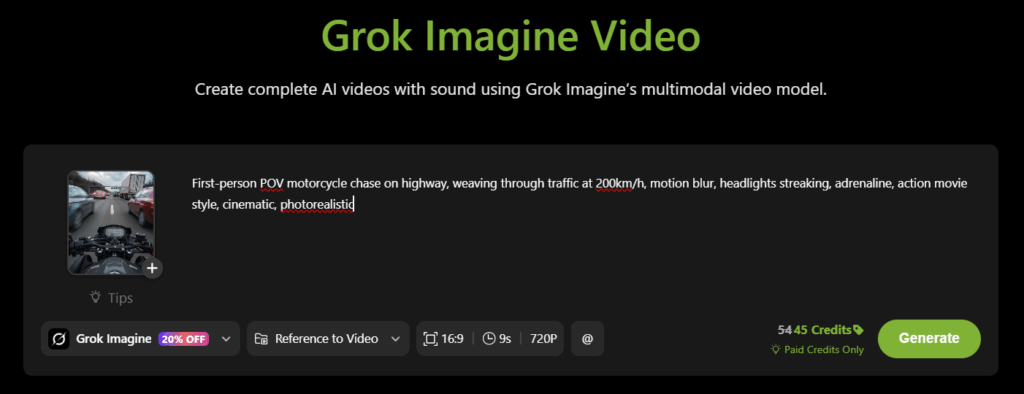
Step 2 — Set Duration, Aspect Ratio, and Resolution
Once you've prepared your prompt or uploaded an image, the next step is configuring your video settings.
Many beginners underestimate this stage.
In reality, choosing the right settings can have a greater impact on the final result than tweaking the prompt itself.
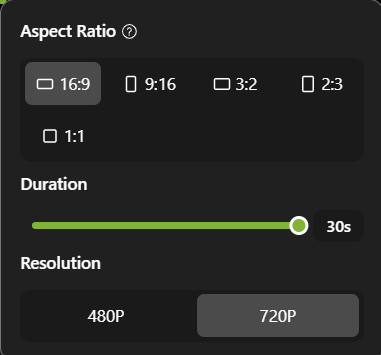
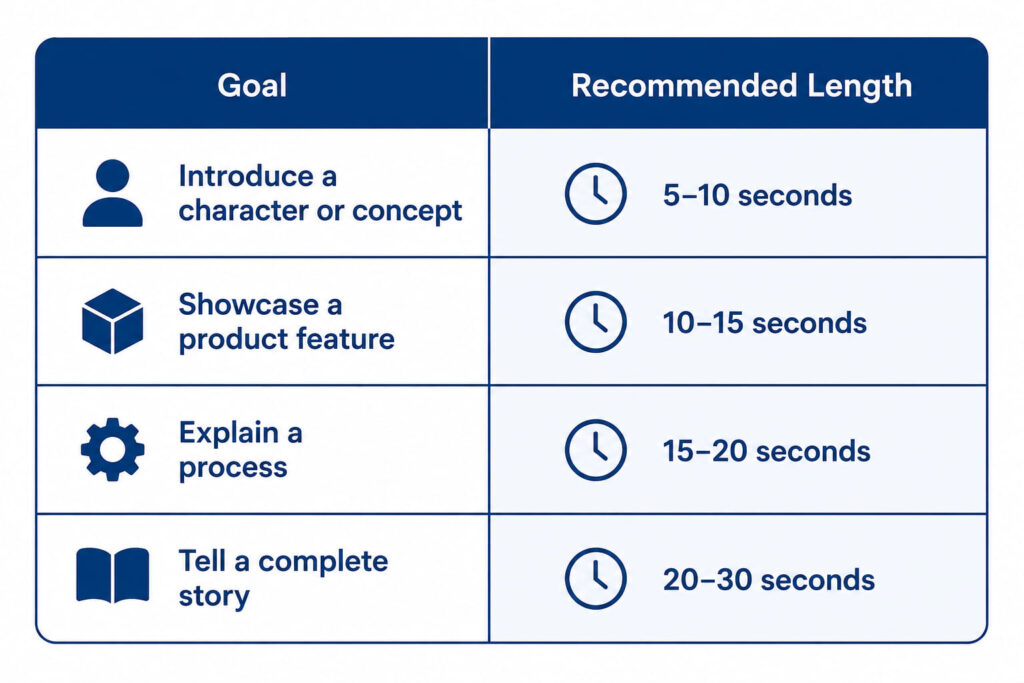
Choose the Right Duration
With Grok AI Video, longer isn't always better. A common mistake is attempting to fit too many actions into a single clip. Instead, think of each generation as a mini-scene. The new extended duration support is one reason Grok Imagine is becoming a serious 30 second AI video generator for creators who need more than a few seconds of motion.
Select the Appropriate Aspect Ratio
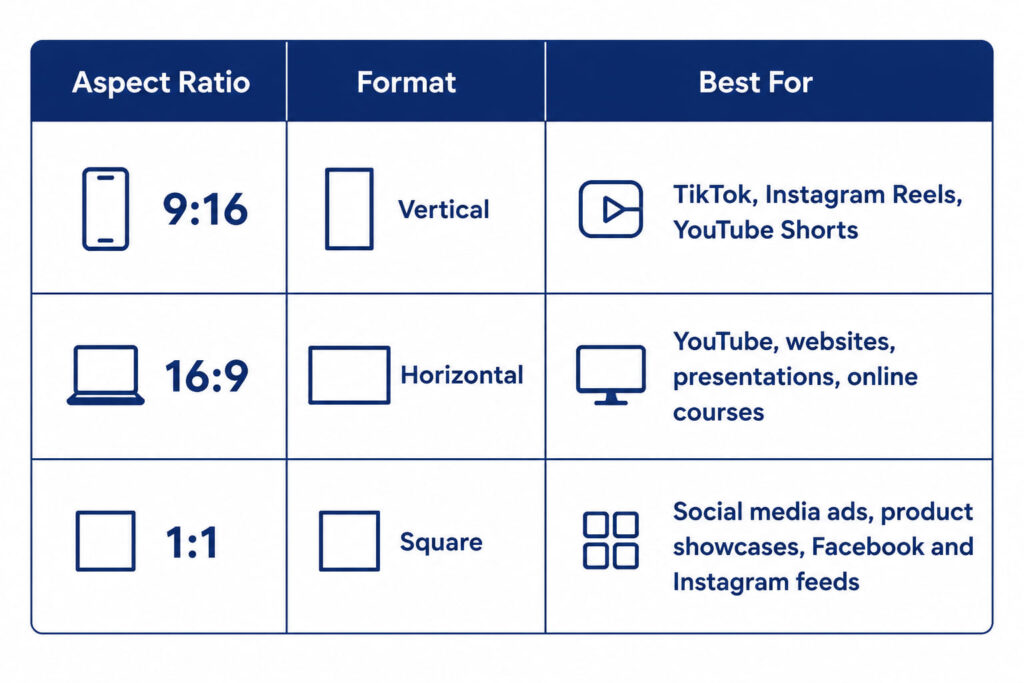
Different platforms require different formats. Before generating, always ask: Where will this video be published? Choosing the correct ratio from the start prevents cropping issues later.
Step 3 — Generate, Preview, and Download
When your clip is ready, preview it before downloading. Once satisfied, download. Grok AI video outputs include the generated audio track by default — no separate export step needed. The clip is ready for editing, posting, or feeding into your next production step.
How to Get Better Results with Grok Imagine
Generating a clip is easy. Generating a good clip — consistently, across different scenes and use cases — is where most people get stuck. These three practices separate creators who use grok ai video effectively from those who generate one mediocre result and move on.
1. Use Image to Video for Consistency
The single most reliable way to improve output quality from grok ai video is to start with a reference image rather than a text prompt alone. Grok imagine image to video gives the Aurora engine a concrete visual anchor — which reduces guesswork in the generation process and produces more stable, consistent output.
This matters most when you need visual consistency across multiple clips. If you're building a 30-second promo from three separate generations, you want the same character, product, or environment appearing across every shot. Generating all three clips from the same reference image is the most practical way to maintain that consistency with the current model.
2. Writing Prompts That Actually Work for Grok AI Video
The difference between a great grok ai video output and a forgettable one almost always comes down to prompt quality. The Aurora engine responds best to shot-description language — the kind of language a director or cinematographer would use to brief a camera operator — rather than narrative prose or vague scene descriptions.
The working formula: Subject + Primary Motion + Camera Move + Audio Direction
Weak prompt: "A woman walking through a forest."”
Strong prompt: "A woman walks slowly through a misty pine forest at dawn, camera tracking from behind at shoulder height, footsteps crunching on fallen leaves, distant birdsong fading in over ambient wind."
The difference isn't length — it's specificity on the four dimensions the Aurora engine uses to construct the clip. Subject (woman in misty pine forest), primary motion (walks slowly), camera move (tracking from behind at shoulder height), audio direction (footsteps, birdsong, wind).
Additional rules that consistently improve grok ai video results:
- 30 to 60 words is the sweet spot. Long prompts don't produce better videos — they produce confused ones. One primary action, one camera move, one audio direction per clip.
- First instruction carries the most weight. The Aurora engine front-weights the opening of your prompt. Your subject and primary action belong in sentence one.
- Indicate pacing in longer clips. For 10 to 15-second generations, add language like "gradual," "slow build," or "sustained through the frame" to prevent front-loaded motion and a static second half.
- Name the camera move explicitly. "Dolly in," "slow pan right," "static wide shot," "handheld follow" — grok ai video responds to cinematography language. Use it.
3. Iterate in 480p First
This is the most practical time-saving workflow for anyone using grok ai video regularly: test every new prompt at 480p before committing to 720p.
480p clips generate faster and cost less per credit — making it entirely reasonable to run three or four prompt variations in the time it would take to generate one 720p version. Confirm the motion direction, the timing, the audio feel, the general atmosphere. Then generate your final version at 720p.
How Grok AI Video Compares in the Current Landscape
The AI video generation space has moved remarkably fast in 2026. It's worth understanding where grok ai video actually sits in the competitive field — not based on marketing claims, but on what each model actually does better and worse for practical content creation.
1. Grok Imagine Video vs. Seedance 2.0
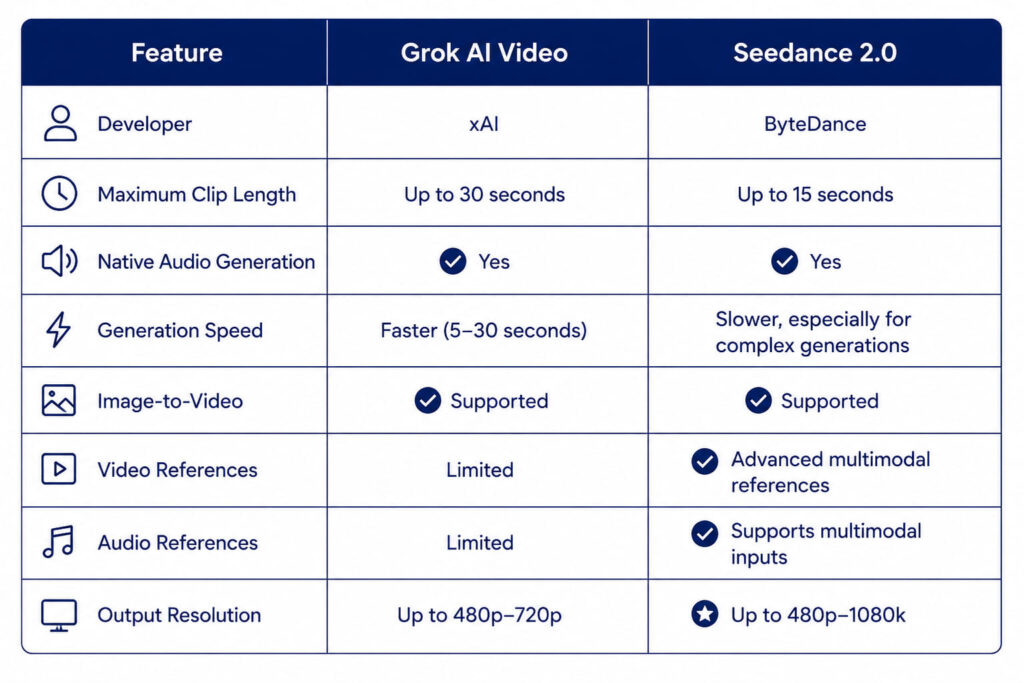
Grok AI Video edges out Seedance 2.0 on the metrics that matter most for everyday content creation: generation speed, native audio, and price per second. Seedance 2.0 delivers the highest cinematic quality in the field right now, but it comes at a higher cost. For creators running high-volume social content or iterating through multiple prompt variations in a session, Grok AI Video is the more practical and cost-efficient choice.
2. Grok Imagine Video vs. Kling 3.0
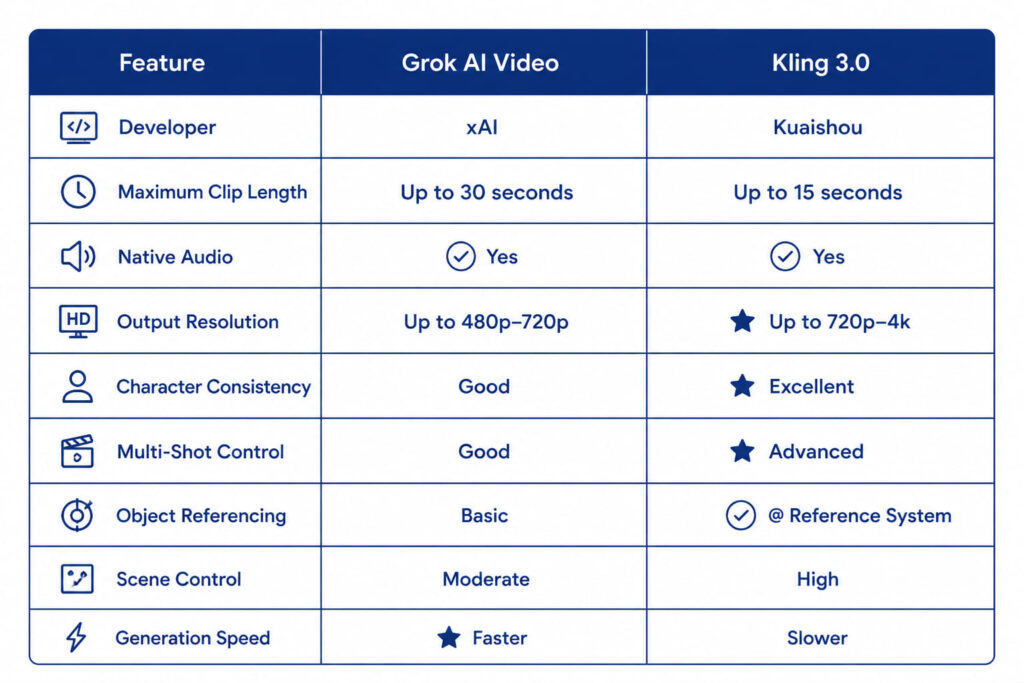
Kling 3.0 includes audio generation and outputs at 1080p — a resolution Grok AI video doesn't currently match. Its @ reference system also offers more granular character consistency across multi-shot sequences, which makes it a strong choice for branded content with specific visual requirements. That said, Grok AI video generates faster and costs less per clip. For most social media and marketing workflows where turnaround speed matters more than frame-level precision, Grok AI video is the more efficient option.
3. Grok Imagine Video vs. Veo 3
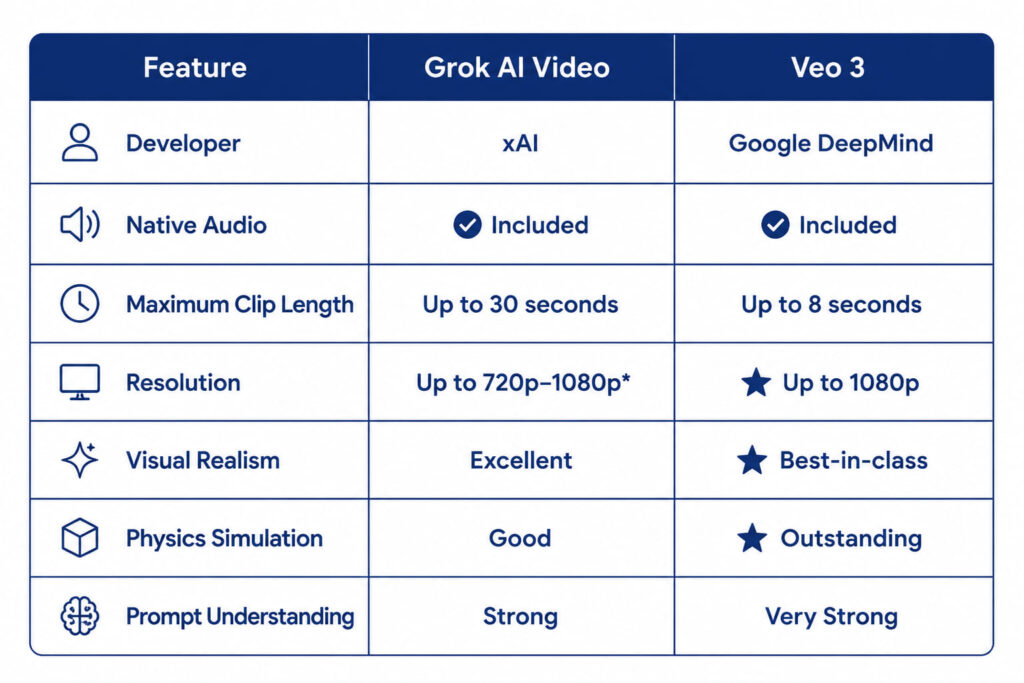
Veo 3 generates broadcast-quality video at up to 1080p with audio, and its cinematic rendering is among the best available. The gap between Veo 3 and Grok AI video shows most clearly in resolution and fine detail — particularly in close-up shots and complex textures. Where Grok AI video wins is accessibility: faster generation, lower cost per clip, and a simpler workflow that doesn't require a dedicated production budget. For independent creators and lean teams generating content at volume, Grok AI video is the more practical everyday tool. Veo 3 is worth the premium when the deliverable genuinely requires broadcast-grade output.
Start Making Videos That Actually Work for You
The honest truth about AI video tools in 2026 is that most of them are genuinely good now. The difference between a creator who uses grok ai video effectively and one who doesn't isn't access — it's workflow.
Start with a reference image. Write prompts like a director, not a narrator. Iterate at 480p before committing to 720p. Chain clips to build toward 30 seconds. Let the native audio do its job.
That's the whole system. No magic, no secret settings — just a repeatable process that gets better every time you run it. For everything that comes next, there's Lipsync.video Now go make something worth watching.