
Subscribe to enjoy model discounts of up to 68%.Try Now→
Pricing
0

Grok Imagine Video

Create complete AI videos with sound using Grok Imagine’s multimodal video model.

Tips
16:9
6s
480P
@
2418 Credits

Grok AI Video Generator — Generate Exactly What You Describe

Grok Imagine Video turns detailed text prompts and still images into short video clips with synchronized audio. Generate full videos with motion, sound, and scene consistency in a single workflow—no editing required.

Grok AI Video Generator — Generate Exactly What You Describe

Key Features of Grok AI Video Generator

Best-in-Class Instruction Following for Grok AI Video

Describe the subject, camera angle, lighting, and motion in detail — Grok Imagine Video executes every element precisely. The model reads your prompt and delivers directed results, not approximations. The gap between what you ask for and what you receive is smaller than with any comparable AI video generator.

Grok Text to Video — From Prompt to Clip in Seconds

Write a scene description and get a video clip with native audio in seconds. No technical parameters required. The more specific your prompt, the more accurately Grok text to video executes it — subject, movement, lighting, and mood all respond to your direction.

Grok Image to Video — Animate Any Still with Motion Control

Upload a photo or AI-generated image and bring it to life. Grok image to video preserves your original composition, subject identity, and framing while adding the motion and atmosphere you describe. For product shots, portraits, and brand visuals where consistency matters, this is the feature that keeps your look intact while adding movement.

Native Audio — Video and Sound Generated Together

Every Grok AI video includes synchronized dialogue, music, and ambient sound — generated in the same step as the visuals. No separate audio tool. No post-production sync. The clip you generate is complete and ready to post, with sound that matches exactly what you described.

How to Generate a Video with Grok Imagine Video

How to Generate a Video with Grok Imagine Video
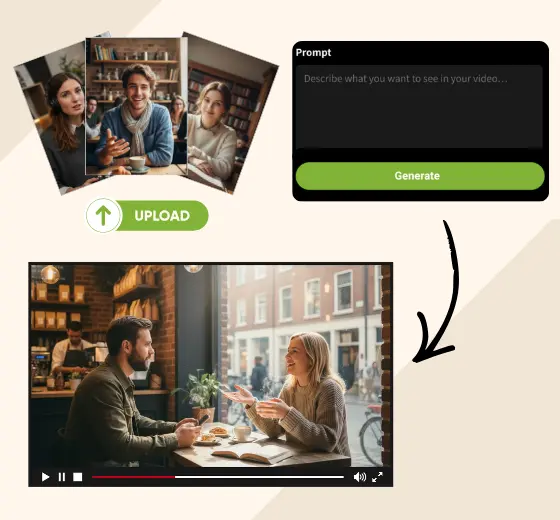
1

Choose your input

Start by typing a prompt or uploading an image. Grok Imagine interprets your input to understand the scene, subject, and intended motion for video generation.

2

Set your parameters

Choose your video duration, aspect ratio, and resolution before generating. Tailor the output to your platform — vertical for social, widescreen for presentations, or square for feeds.

3

Generate and Download

Click generate to create a complete AI video with motion and built-in audio. Preview the result and download it instantly for social media, marketing, or creative projects.

What You Can Create with Grok Imagine Video

Describe exactly what you need — Grok Imagine Video generates it with precision.

Product Ads

Turn product photos into scroll-stopping video ads. Upload your product shot, describe the motion and mood, and Grok image to video generates a polished clip with native audio. No studio. No shoot day.

AI Short Videos

Generate original AI short videos from a single text prompt. Describe the scene, set your aspect ratio, and publish directly to Reels, Shorts, or Stories. Grok text to video handles the visuals, motion, and sound in one step.

Creative Concept Prototyping

Turn a brief into a visual before committing to production. Generate multiple Grok AI video directions in minutes and align your team on the right creative — faster than any written treatment ever could.

Generate Your Grok AI Video — Right Now

From prompt to finished video with audio — no production team, no extra tools. Just your idea and Grok Imagine Video.

What Creators Are Saying About Grok Imagine Video

I described a specific product shot for a Grok text to video test — soft backlight, slow push-in, ambient café sound — and the first generation matched it closely enough to post with one small prompt adjustment. I've never had that happen with another AI video tool.

Jordan Mills
Jordan Mills
Social Media Manager

What changed my mind was how precisely Grok Imagine Video followed the prompt. I asked for a specific camera angle and a particular mood, and it delivered both. Other tools give you something in the ballpark. This one gives you what you described.

Priya Nair
Priya Nair
Freelance Content Creator

We stopped debating creative direction in meetings. Now we use Grok AI video generator to produce clips from three different briefs and react to actual visuals. The instruction following is accurate enough that each clip genuinely represents the brief it came from.

Marcus Chen
Marcus Chen
Brand Strategist

I use Grok image to video every week for product content. I upload the shot, describe the motion I want, and the product stays consistent across generations. That level of control is what I couldn't get anywhere else.

Sofia Andersson
Sofia Andersson
E-commerce Operator

I use Grok Imagine Video for pre-visualization before shoots. I describe key scenes in detail — lighting, camera movement, subject action — and generate rough clips to check composition and pacing. The accuracy is good enough to catch real problems before we're on set.

Deon Okafor
Deon Okafor
Independent Filmmaker

The combination of instruction accuracy and native audio is what keeps me using this Grok AI video tool. I describe the scene, I get a complete clip with sound. At the volume we publish, that means significantly fewer production steps per piece of content.

Lena Hoffmann
Lena Hoffmann
Digital Marketing Lead

FAQs about Grok Imagine Video

What is Grok Imagine Video?

Can I use Grok Imagine videos commercially?

What is the difference between Grok text to video and Grok image to video?

How long are Grok Imagine videos?