Upload Your Video
Choose the clip whose background you want to remove. The upload area displays the current file requirements and limits when you select a video.

Green Screen Remover
Remove a green screen background from your video with AI, then keep the result transparent or replace the background with a color or image.
One-click AI background removal
Automatically remove green screen backgrounds from video with AI. Export a video with a transparent background or replace the original background with a your own image. Free to try online, with no watermark.
Core features
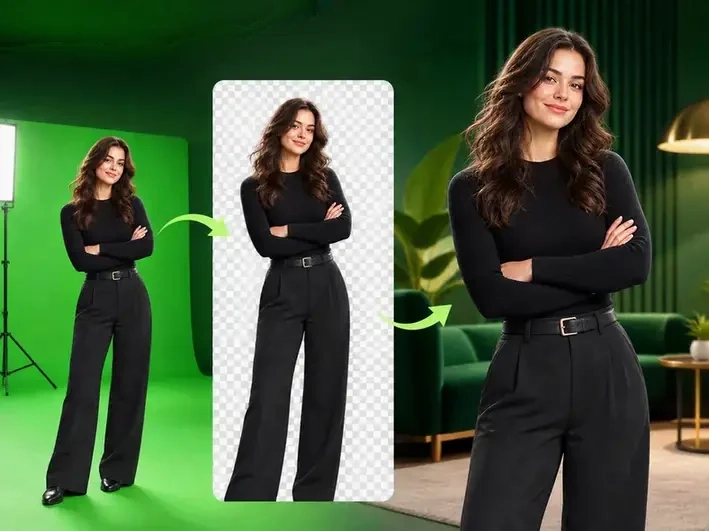
A simpler green screen remover for creators who want a clean subject cutout without learning chroma key controls.


Three-step workflow
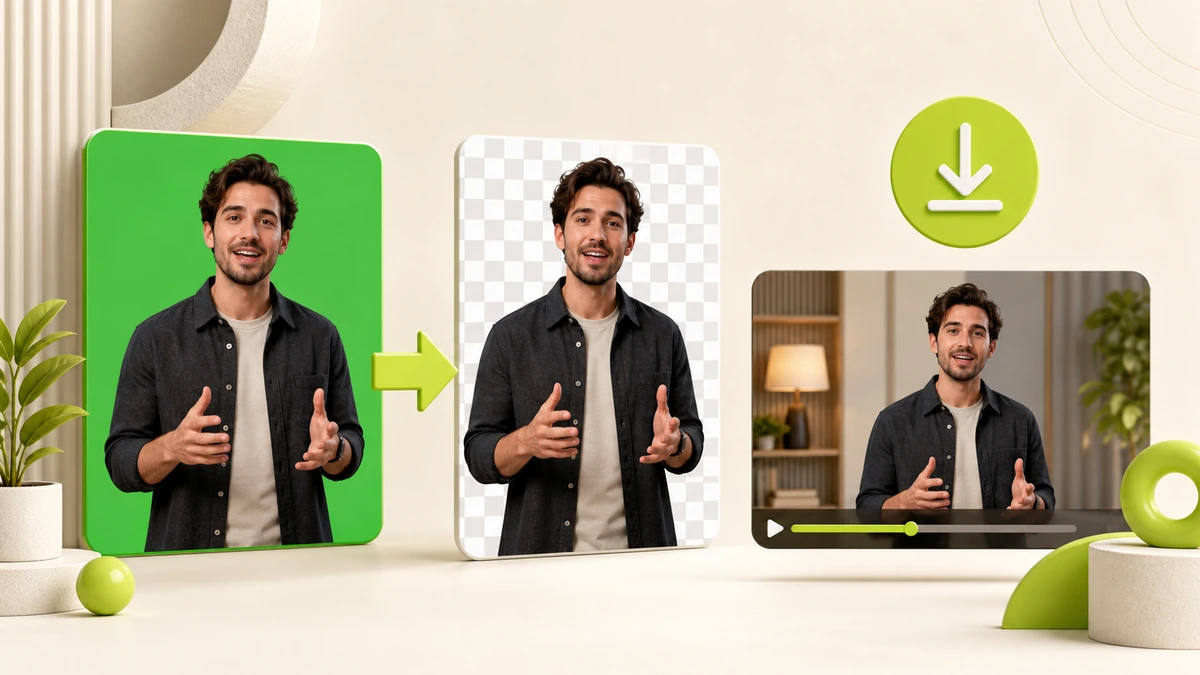
Choose the clip whose background you want to remove. The upload area displays the current file requirements and limits when you select a video.
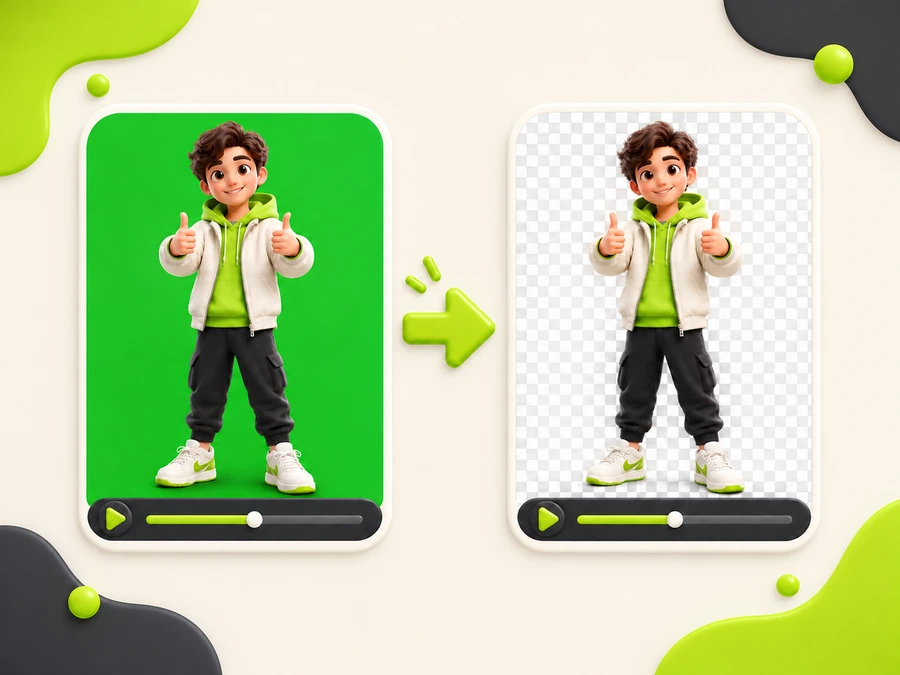
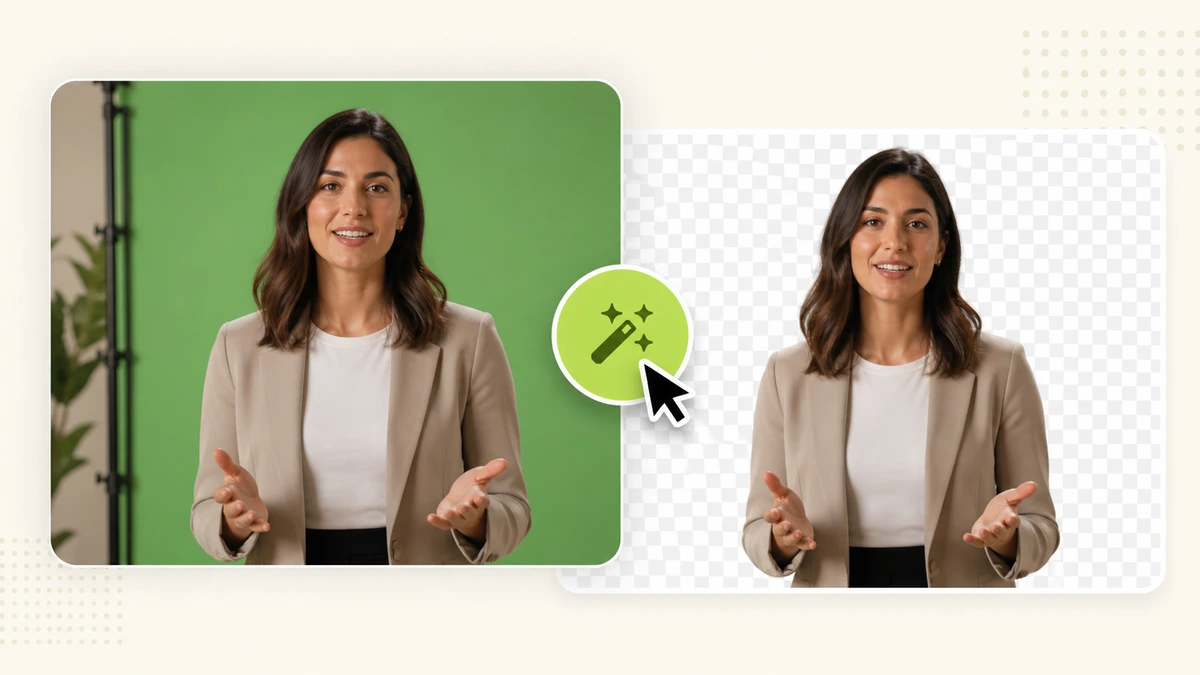
Start the green screen remover. AI detects the subject and removes the original green or non-green background automatically.
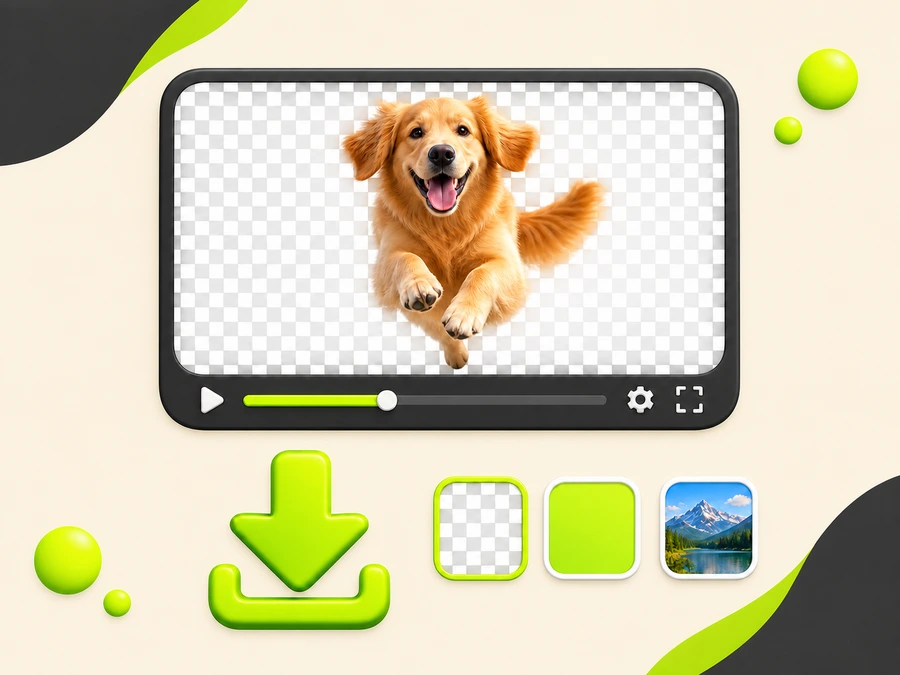
Preview the result, choose a transparent background, a solid color, or an image, then download the video with its original background removed.
Use the green screen remover online, try it free, and download a watermark-free result.
Creator workflows
Each example shows the complete workflow: green screen footage, a transparent cutout, and the final scene background.
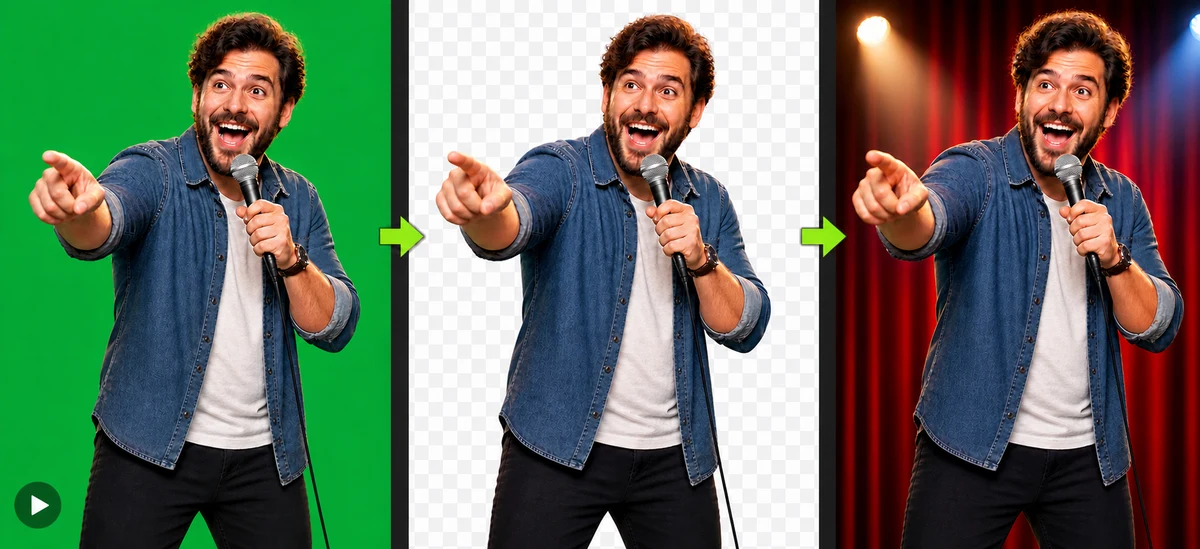
Remove the shooting background, keep a transparent actor cutout, and place the performance into a story setting.
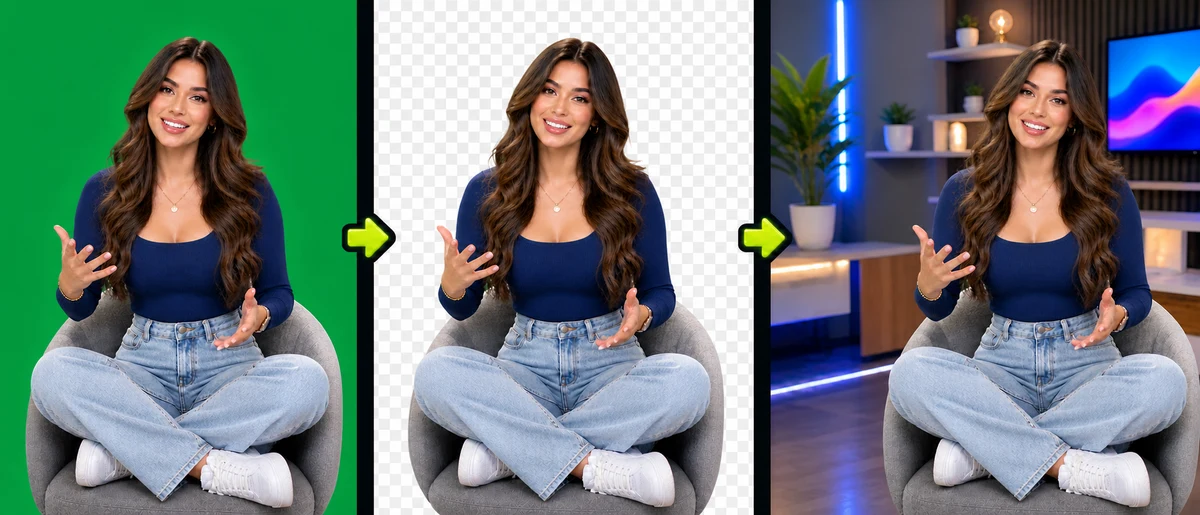
Separate the speaker from the green screen, then place the transparent cutout into a topic-related creator background.
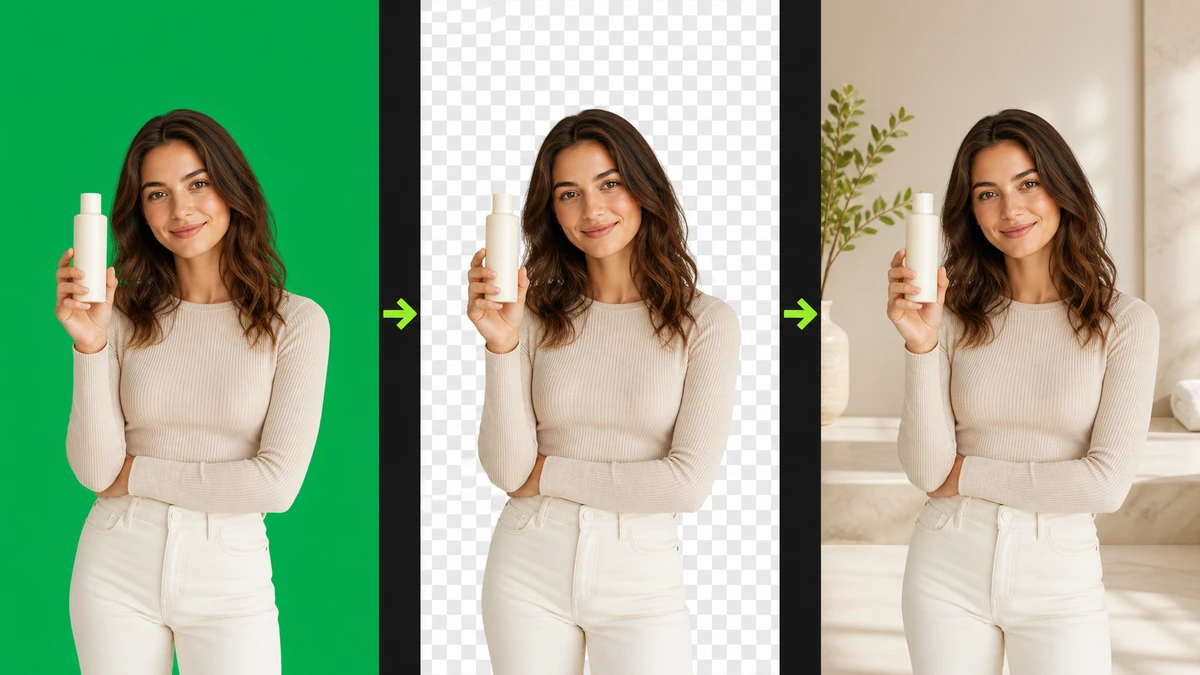
Create a transparent presenter cutout before placing the footage into a polished product setting.
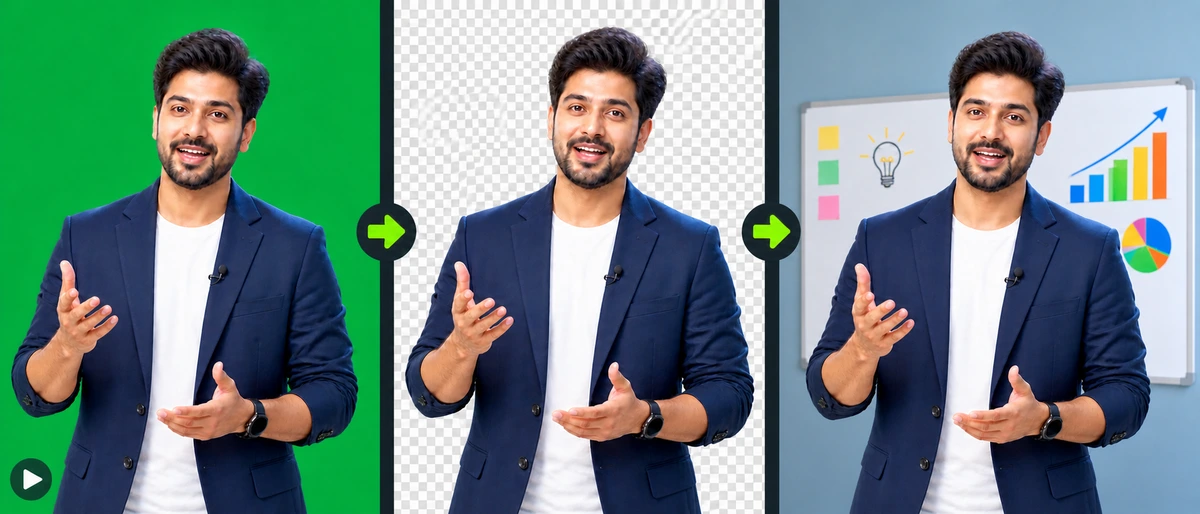
Remove the green screen, preserve a transparent teacher cutout, and add lesson graphics or a teaching environment.
Better inputs
Clear, well-lit footage with visible subject separation and controlled motion helps the green screen remover produce cleaner edges.
Choose a sharp, well-lit video where the subject is easy to see.
Create visible contrast between the subject and the original background.
Cleaner movement helps AI identify edges across frames.
Avoid cutting off important parts of the person or product.
Creator feedback
How different creators could use the green screen remover in typical workflows.
“I can clean up a reaction clip, keep the speaker as a transparent cutout, and add a topic-specific image without opening a full editor. That saves time when I am producing several short-form posts in one afternoon.”

“One product presentation can be reused across several campaign backgrounds. I can create clean variations for product pages and social ads, then download each version without a watermark for creative testing.”

“We shoot several performances against the same green background, preserve each actor as a clean cutout, and use different location images to build new scenes for a short-form drama without returning to the set.”

“Replacing my lesson background with a slide or classroom image is much easier than learning chroma key controls for every recording. I can keep the presenter visible while adapting the lesson for different courses.”

“A presenter with a transparent background gives me more freedom to arrange the host, captions, screenshots, and supporting graphics in a YouTube edit. I can change the layout without recording the introduction again.”

“I can make several branded versions from one source clip by changing the background image instead of reshooting the speaker. It makes it easier to adapt the same message for campaigns, channels, and visual styles.”

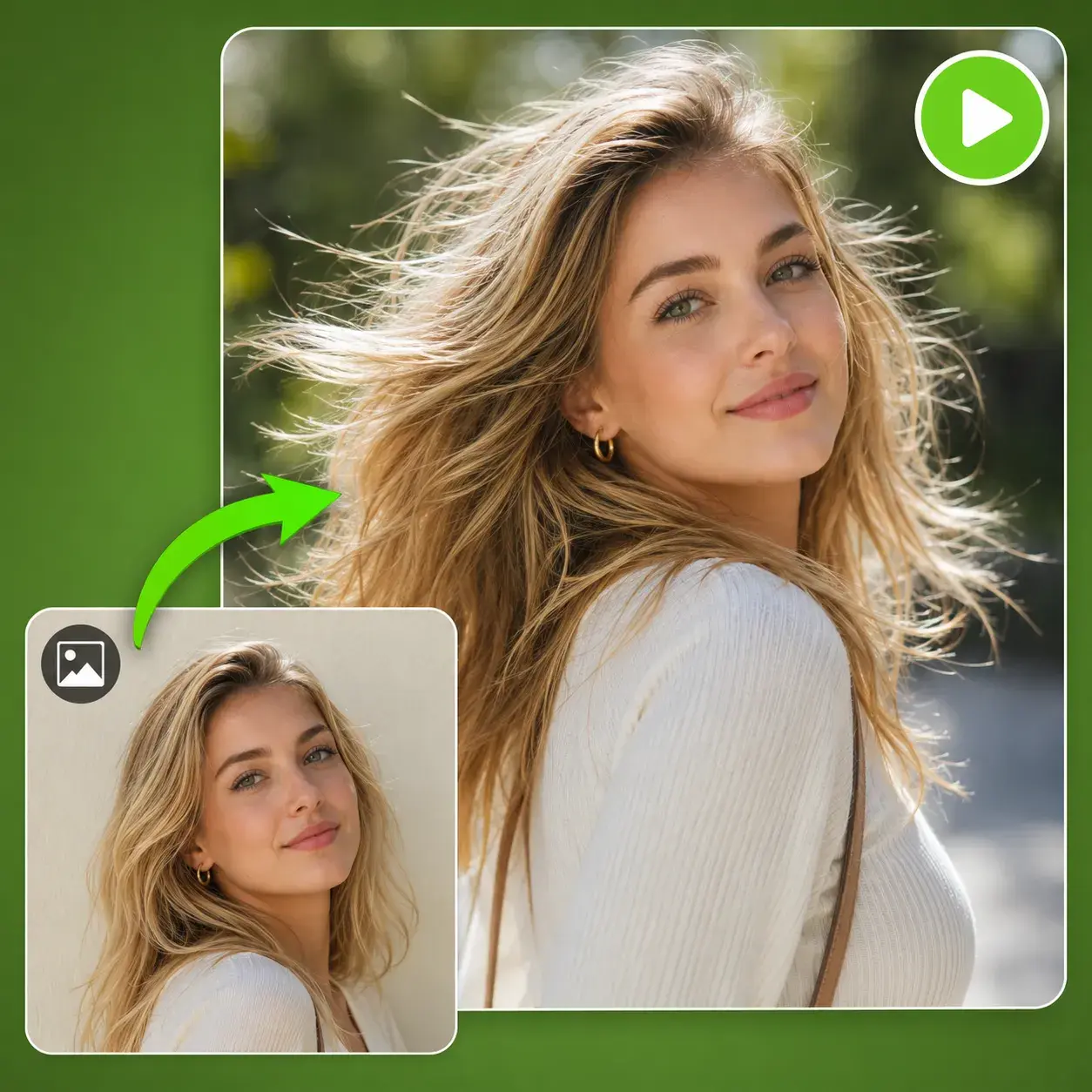
Transform static images into lifelike videos with advanced AI models.

Recreate the reference video's movements 1:1 for your character.
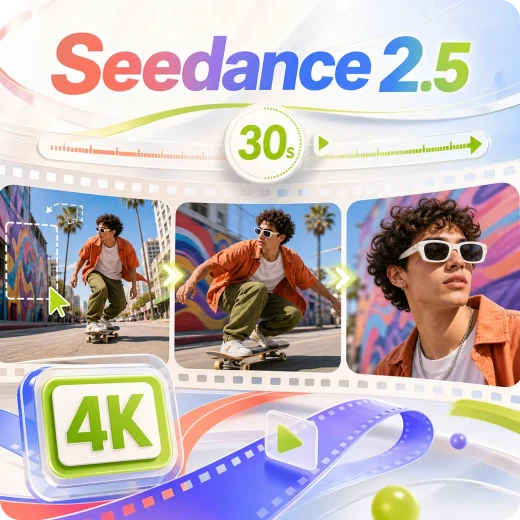
Generate a 30-second video directly using up to 50 multimodal references.

Scene understanding and multimodal inputs enable more realistic AI videos.
Common questions