
GPT Image 2.5 Guide: How to Write Better AI Image Prompts
 Jennifer
GPT Image 2.5 makes it easier to turn a rough idea into a polished visual, but a good model still needs a good brief. Whether you are creating a product image for an online store, a social media graphic for an overseas campaign, a portrait for a creative project, or a visual for an online lesson, the prompt determines how clearly your idea reaches the model.
In this guide, we’ll look at what GPT Image 2.5 brings to image generation, how it compares with GPT Image 2.0, and how to write more effective AI image prompts. You’ll also find practical GPT Image 2.5 prompt examples that you can adapt to your own projects.
What Is GPT Image 2.5?
GPT Image 2.5 is OpenAI’s latest generation of image generation technology, introduced in September 2026. It is designed to create and edit images from text and image inputs while following more detailed visual instructions. This makes it useful for a wide range of AI image prompts, from simple creative concepts to more structured visual briefs.
A stronger GPT Image 2.5 prompt could describe the product, environment, camera angle, lighting, composition, color palette, visual style, and intended use. The result is not guaranteed to match every detail perfectly, but the model has much more useful information to work with.
GPT Image 2.5 also places a stronger emphasis on image editing. OpenAI says the model is better at changing a requested element while preserving other parts of the image, such as the subject, composition, and surrounding details. This is particularly useful when you already have an image that is close to what you want but needs a few changes.
Another important improvement is multi-turn consistency. You can continue refining an existing result with additional instructions instead of starting from scratch for every small change. OpenAI says GPT Image 2.5 follows editing instructions more reliably across multiple turns, helping earlier changes remain consistent as you refine the image.
GPT Image 2.5 can also handle practical visual tasks such as product imagery, social content, posters, presentations, illustrations, and images containing text. OpenAI highlights improved handling of complex layouts and visual instructions, while its ChatGPT experience also includes templates and sketch-based input for certain workflows.
The key point is that GPT Image 2.5 does not remove the need for clear instructions. Instead, its improved ability to follow complex instructions gives you more room to describe what you actually want.
GPT Image 2.5 vs. GPT Image 2.0
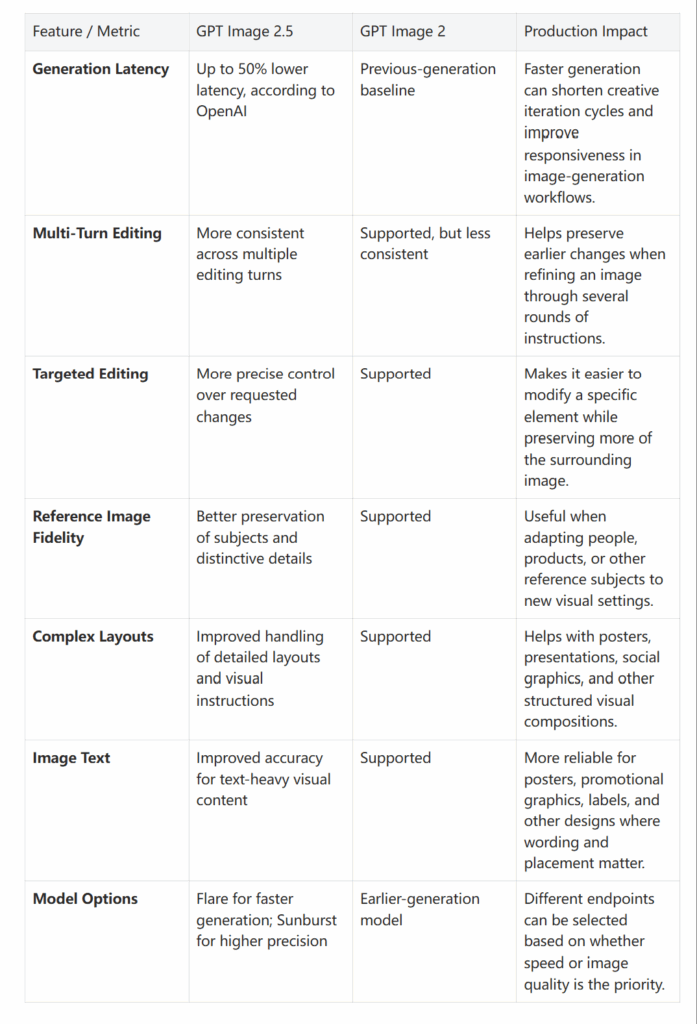
OpenAI reports that GPT Image 2.5 delivers sharper details, more natural lighting, and richer textures while improving the preservation of distinctive features from reference images. It also provides more reliable multi-turn editing and improved handling of complex visual layouts. For production workflows, one of the clearest measurable improvements is speed: OpenAI reports that generation latency can be up to 50% lower than Images 2.0.
The differences are especially relevant when an image needs to be refined through multiple rounds rather than generated once. The table below summarizes the main changes and what they can mean for practical image-generation workflows.
How to Write a GPT Image 2.5 Prompt
A useful GPT Image 2.5 prompt does not need to sound like computer code. In fact, overly complicated prompts can make the creative process harder to manage.
A better approach is to treat your prompt like a short creative brief. Tell the model what you want to see, where it should appear, how it should look, and what details matter.
A practical structure for AI image prompts is:
Subject + Scene + Composition + Style + Details + Requirements
You do not need every element for every image. The best AI image prompts use only the details that actually affect the final visual.
1. Start With the Subject
Begin with the most important element in the image.
Instead of:
A nice woman.
Try:
A young woman in her late twenties wearing a cream linen blazer, holding a ceramic coffee cup.
The second version gives GPT Image 2.5 something concrete to work with. The same principle applies when writing a ChatGPT image prompt: describe the subject in a way that gives the model recognizable visual information.
For product images, identify the product clearly. For educational visuals, describe the concept or object that needs to be explained. For entertainment, describe the character, action, or environment that should dominate the scene.
2. Describe the Scene and Composition
Once you have the subject, explain where it is and how it should appear.
Useful details include:
- location
- camera angle
- framing
- subject position
- foreground and background
- negative space
- perspective
For example:
Place the product in the center of a pale stone table, photographed from a slightly elevated angle, with soft negative space on the left.
This is much more useful than simply saying:
Make it look professional.
“Professional” can mean almost anything. Composition tells the model what the image should actually look like.
3. Add Style and Visual Details
Now describe the visual direction.
You might specify:
- photorealistic product photography
- editorial fashion photography
- clean educational illustration
- cinematic scene
- 3D render
- hand-drawn illustration
- minimalist commercial design
You can also describe lighting, materials, colors, textures, and atmosphere.
For example:
Use soft morning sunlight, warm neutral tones, subtle shadows, natural skin texture, and a premium editorial photography style.
The goal is not to throw twenty style keywords into one prompt. Effective AI image prompts focus on the visual qualities that actually matter.
4. Specify Text and Important Requirements
If the image needs text, write the exact wording and explain where it should appear.
For example:
Add the headline “SUMMER SKIN GUIDE” at the top of the poster in large, clean typography. Do not add any other text.
You can also tell GPT Image 2.5 what should remain unchanged during editing:
Replace only the background. Keep the person's face, hairstyle, clothing, pose, and composition unchanged.
This kind of “change X, preserve Y” instruction is especially useful for editing workflows. OpenAI specifically describes GPT Image 2.5 as being better at making focused edits while preserving other image details.
A good ChatGPT image prompt should therefore be specific without becoming unreadable. The same principle applies to AI image prompts for posters, product visuals, social content, and image editing.
GPT Image 2.5 Prompt Examples
The easiest way to understand effective AI image prompts is to see how a few specific details can shape the final image. You do not need a long list of adjectives or dozens of instructions. A clear subject, setting, composition, lighting, and visual style are often enough to give GPT Image 2.5 a strong creative direction.
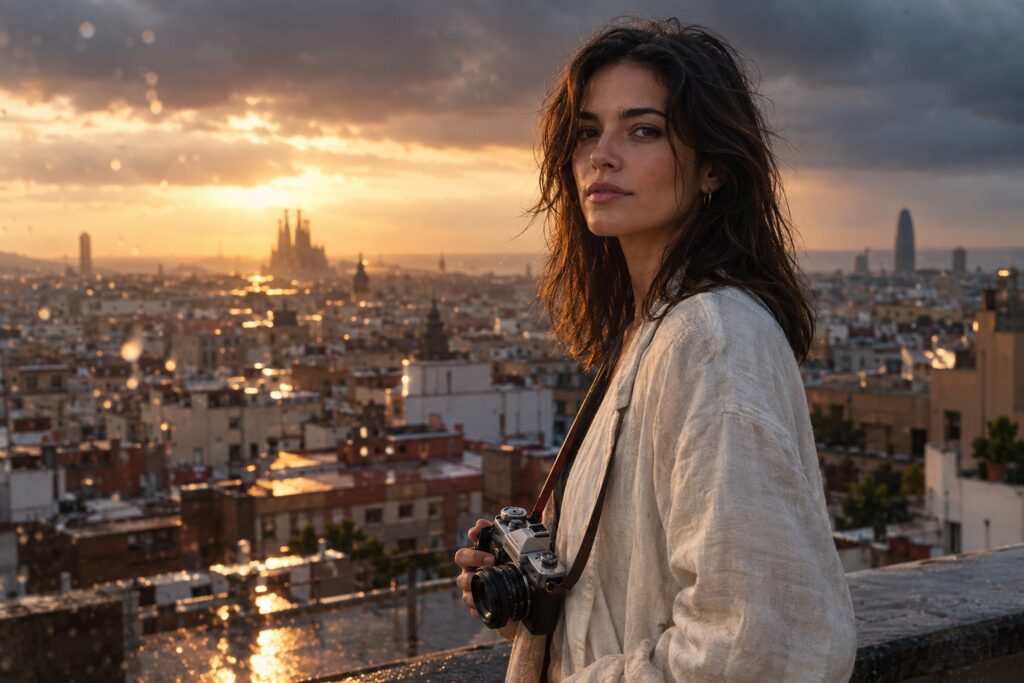
1. Cinematic Portrait Prompts for Character Detail
A distinctive character gives a portrait more personality than a generic description such as “a beautiful woman.” Include details that define the person, then use the environment and composition to build a visual story.
Create a cinematic editorial portrait of Elena, a 27-year-old Spanish photographer, standing on a rain-soaked Barcelona rooftop just after sunset. She wears a flowing cream linen jacket and holds a vintage 35mm camera at her side. Warm light breaks through dark clouds behind her, illuminating the wet rooftops and distant city skyline. Frame her from the waist up, slightly right of center, with the skyline fading into atmospheric haze on the left. A few rain droplets remain on the camera lens in the foreground. Use natural skin texture, subtle film grain, shallow depth of field, and restrained cinematic color grading.
This structure works well for fictional characters, AI influencers, editorial portraits, and creator content.
2. Product Photography Prompts for Visual Impact
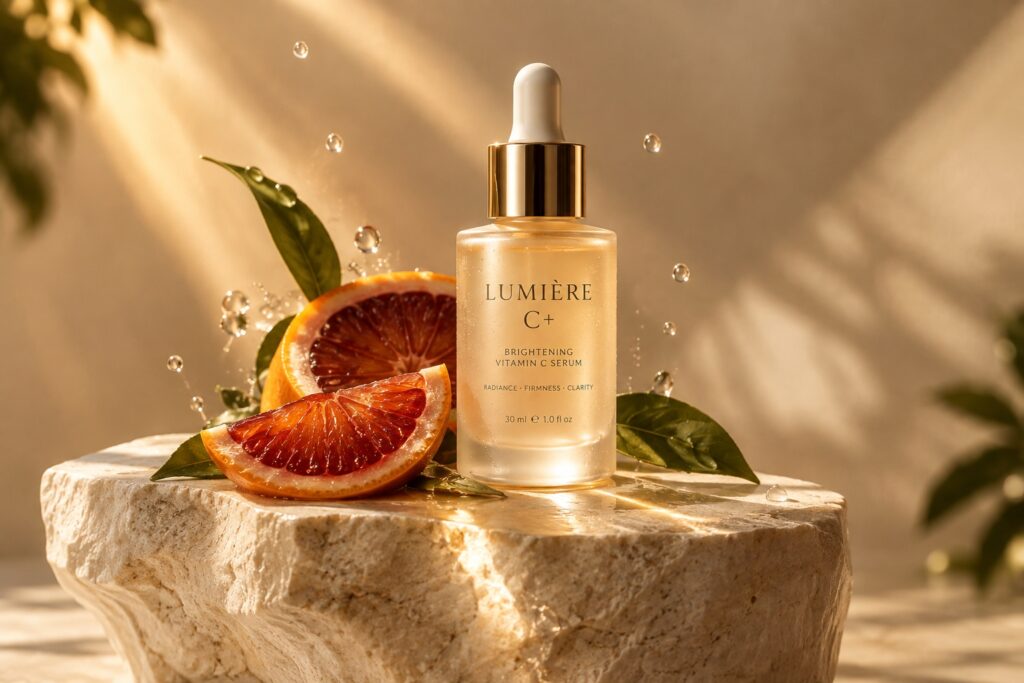
For product images, name the actual product and describe the materials, surrounding objects, lighting, and composition. This gives the model a specific visual scene rather than a generic “premium product photo.”
Create a high-end skincare campaign featuring a frosted-glass serum bottle labeled “LUMIÈRE C+,” positioned on a sculptural ivory stone pedestal. Surround it with a few blood orange slices, delicate green leaves, and suspended water droplets. A narrow beam of golden sunlight passes through the scene, creating soft reflections across the glass and long shadows on the pedestal. Keep the bottle as the clear focal point and leave elegant negative space around it. Use a refined luxury beauty campaign aesthetic with realistic materials, controlled depth of field, and warm ivory, amber, and muted green tones.
The same structure can be adapted for cosmetics, food, electronics, fashion products, and e-commerce visuals.
3. Social Media Prompts for Stronger Composition
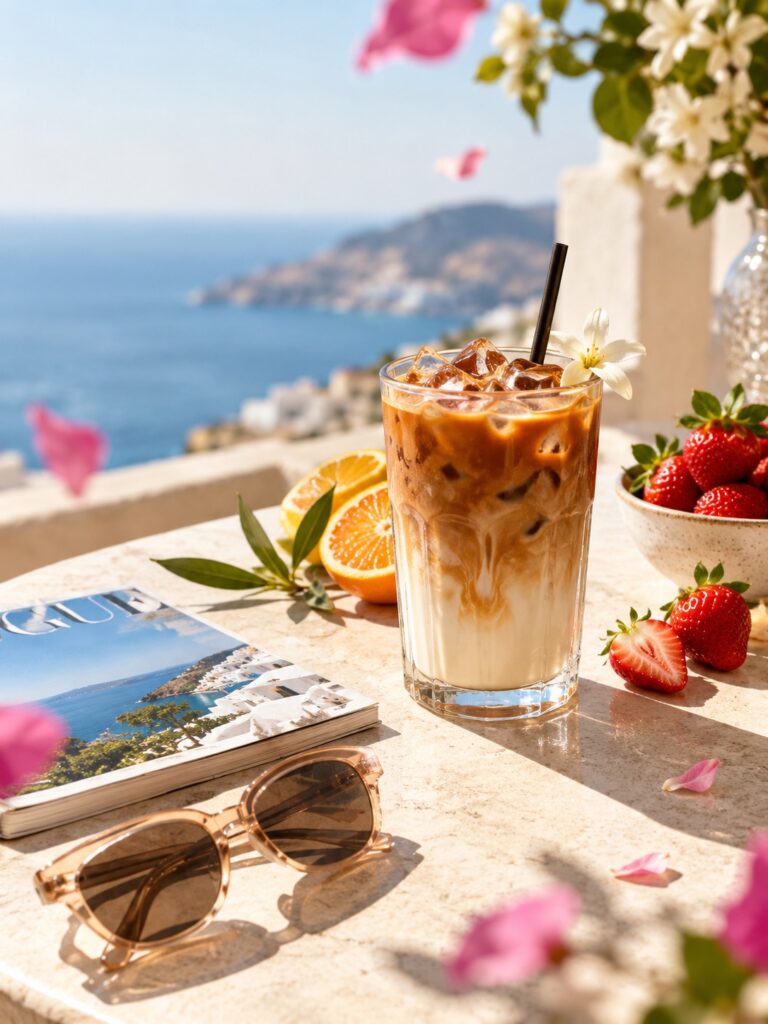
For social media content, the image needs to look good while also fitting a specific format. Mention the intended aspect ratio and leave space where text or other design elements may be added later.
Create a striking 4:5 editorial image for a summer coffee campaign. Show an iced vanilla latte in a clear glass on a sunlit Mediterranean table, surrounded by fresh strawberries, sliced citrus, a small fashion magazine, and translucent sunglasses. Arrange the objects in an intentional diagonal composition rather than a symmetrical flat lay. Strong afternoon sunlight creates crisp shadows across the table while a soft breeze moves a few flower petals in the foreground. Keep the latte as the visual anchor and leave clean space in the upper-left area for a short headline. Use a sophisticated lifestyle magazine aesthetic.
This type of AI image prompt can be adapted for Instagram posts, Pinterest graphics, campaign visuals, and other social content.
4. Poster Prompts for Text and Layout
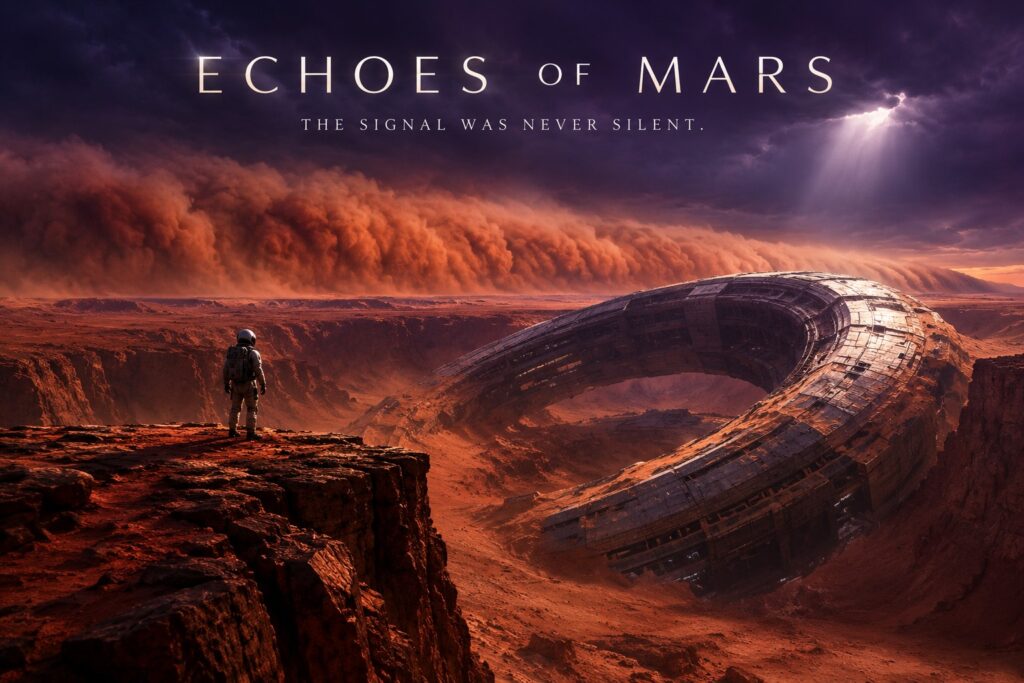
When text is part of the image, provide the exact wording and its position instead of leaving the entire design to the model. This is particularly useful for posters, event graphics, and promotional visuals.
Create a cinematic science-fiction movie poster titled “ECHOES OF MARS.” Show a lone astronaut standing on the edge of a colossal Martian canyon, facing a gigantic ring-shaped spacecraft partially buried in the red landscape. The astronaut should appear small compared with the structure to emphasize scale and mystery. A massive dust storm moves across the distant horizon beneath a deep violet sky, with a narrow beam of light breaking through the clouds. Place “ECHOES OF MARS” prominently at the top in elegant cinematic typography, followed by the tagline “THE SIGNAL WAS NEVER SILENT.” Do not add any other text, logos, credits, or dates.
This approach can also be used when writing AI image prompts for movie concepts, event posters, presentation covers, and campaign graphics.
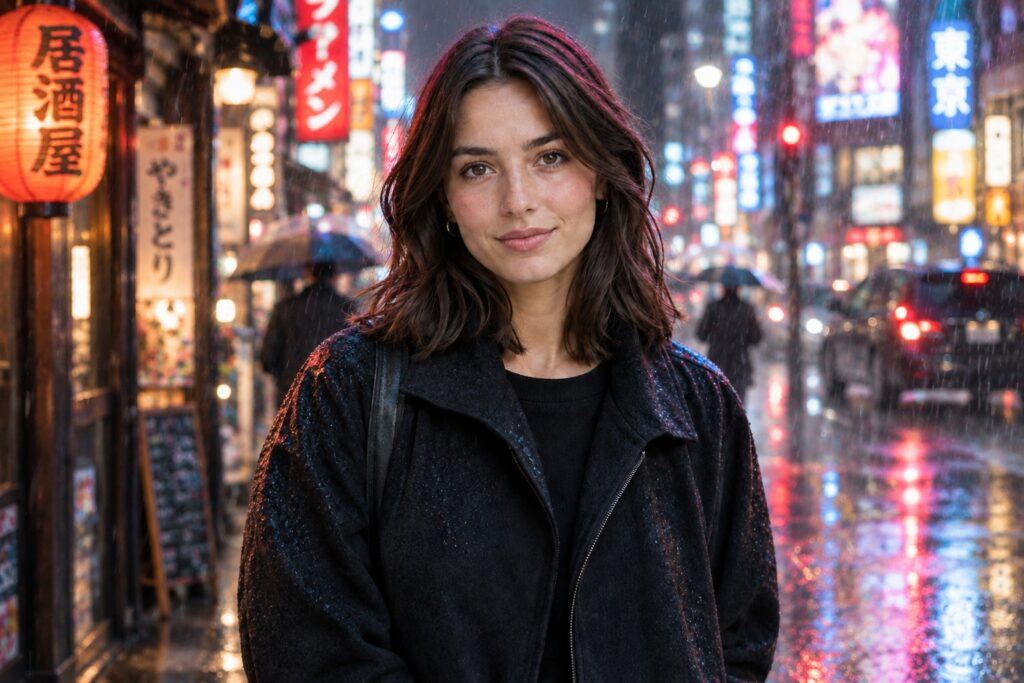
5. Image Editing Prompts: Change and Preserve
Editing prompts should clearly identify what needs to change and what must stay the same. You do not need to describe the entire original image again.
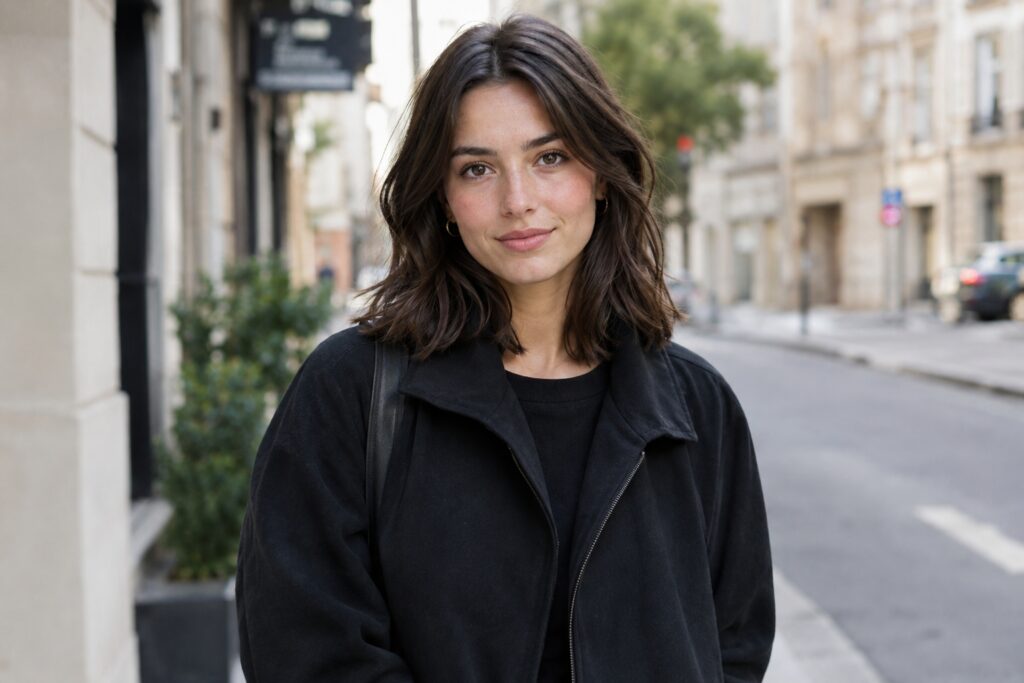
Edit the uploaded portrait while preserving the woman's face, hairstyle, clothing, pose, expression, and body proportions. Replace the original background with a cinematic Tokyo street during a heavy summer rainstorm. Keep her in the same position, but surround her with glowing Japanese signs, wet pavement, umbrellas, and blurred traffic lights. Match the new environment to the original lighting on her face, adding subtle neon reflections to her hair and clothing without changing her appearance. Add realistic rain in the foreground and shallow depth of field so the final image looks like a naturally photographed scene rather than a composited background.
This type of ChatGPT image prompt is useful for changing backgrounds, environments, lighting, or other specific elements without rebuilding the entire image.
6. Keep AI Image Prompts Specific, Not Long
These GPT Image 2.5 prompt examples may look detailed, but they are not designed to be copied word for word. They show how effective AI image prompts can stay focused while still giving the model enough visual information.
A useful structure for a AI image prompt is:
Subject → Action → Environment → Composition → Lighting → Style → Important Details
You do not need to describe everything. Focus on the details that actually affect the image. “A woman in Tokyo” is vague, while “a 27-year-old photographer standing on a rainy Tokyo street at night, framed from the waist up” gives GPT Image 2.5 much more useful visual information.
In other words, specificity matters more than word count. A concise GPT Image 2.5 prompt with a clear visual idea can be more useful than a long prompt filled with generic adjectives.
How to Use GPT Image 2.5 for Free
If you want to experiment with GPT Image 2.5 and test different AI image prompts, there are straightforward ways to get started.
1. Use GPT Image 2.5 in ChatGPT
ChatGPT Images 2.5 is available across ChatGPT tiers, so ChatGPT is one of the most direct places to experiment with image generation. You can enter a ChatGPT image prompt in a conversation, generate an image, and continue refining it with additional instructions. OpenAI also provides features such as image editing, templates, and sketch-based input in the ChatGPT Images experience.
Keep in mind that access and usage limits can vary by ChatGPT plan and current product policies, so check OpenAI's current availability information if you need a specific allowance. ChatGPT Images is currently available across tiers.
2. Try GPT Image 2.5 Online
Another option is to use an online image-generation platform that provides access to GPT Image 2.5.
This can be useful if your goal is simply to test different AI image prompts without building an API workflow. You can take the examples above, adjust the subject or visual direction, and compare the results.
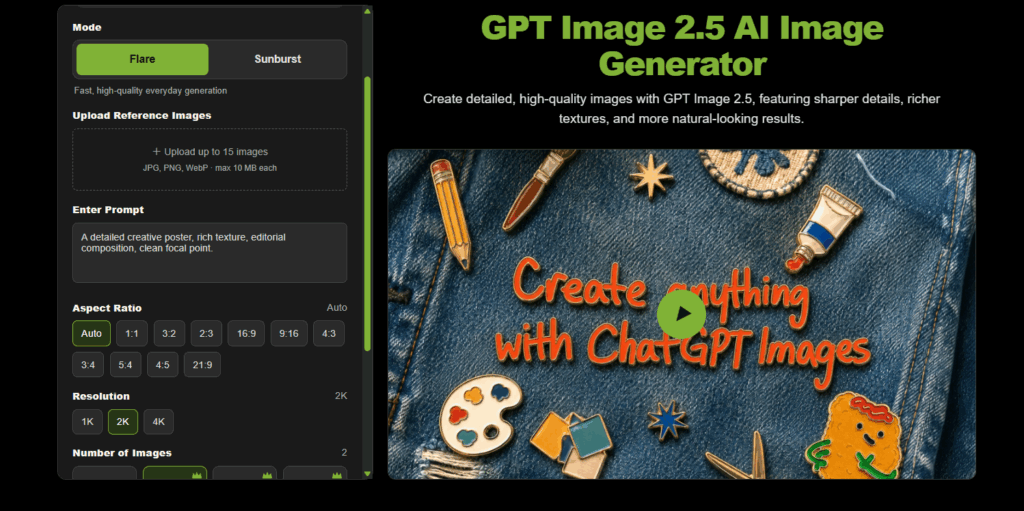
LipSync.video also provides GPT Image 2.5 as part of its creative tools. You can use the GPT Image 2.5 AI Image Generator to test different AI image prompts, adjust available image settings, and refine your ideas based on the results.
Final Thoughts
GPT Image 2.5 gives creators more control over detailed visuals, from realistic portraits and product photography to social graphics and image editing. The key is not writing longer prompts, but communicating your visual idea clearly enough for the model to understand.
If you want to experiment with the techniques in this guide, you can try the GPT Image 2.5 AI Image Generator on LipSync.video and put these prompt ideas into practice.