How to Make an AI Dance Video (Step-by-Step Guide 2026)
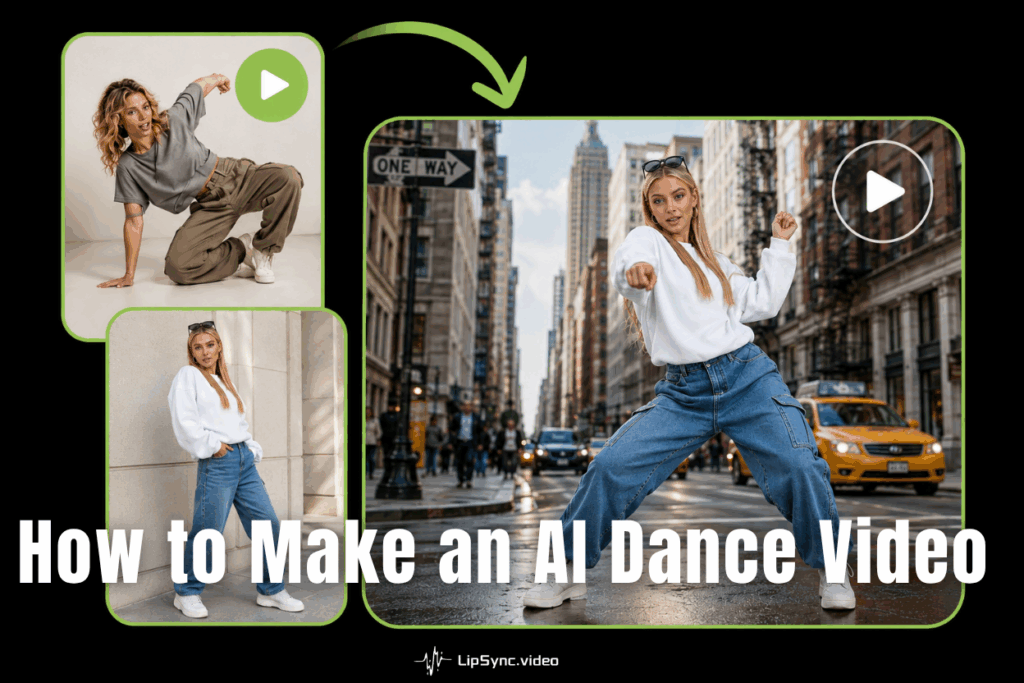
AI dance videos are everywhere right now, and the secret isn't rhythm — it's software. In this guide, we'll walk through exactly how to make an AI dance video from a single photo, using Kling Motion Control on Lipsync.video, and then show you how to take it one step further: making that same character sing, too.
No dance training. No choreography. No embarrassing rehearsal footage on your camera roll. Just a photo, a reference clip, and a few clicks.
What Is an AI Dance Video
An AI dance video is exactly what it sounds like — a video where a character (your photo, an avatar, a fictional persona, whatever you choose) performs dance movements that were never actually filmed with that character. Instead, AI analyzes a reference motion clip and maps those movements onto your image, frame by frame, until you get a fully animated dance sequence that looks like it was shot with a real performer.
This is different from old-school motion capture, which required suits, sensors, and a studio budget most of us don't have lying around. Today, an AI dance video generator can do the heavy lifting using just two inputs: a photo and a video. That's the whole magic trick. On Lipsync.video, this is powered by Kling 3.0 and Kling 2.6 motion control models, which are specifically built to preserve natural body mechanics — weight shifts, joint bending, even the little wobble of a spin — so the final AI dance video doesn't look stiff or robotic.
Who's actually making these? Realistically, three groups:
- Content creators chasing a trending sound or challenge without filming 40 takes.
- Overseas marketers who need culturally flexible characters (think: a brand mascot dancing in a Lunar New Year video one week, a Halloween theme the next) without hiring dancers across time zones.
- People who just want to laugh. Turning your dog, your boss (with permission, please), or your childhood photo into a dancer is, frankly, a valid use case on its own.
What You Need Before Making an AI Dance Video
1. A Clear Photo of Your Character
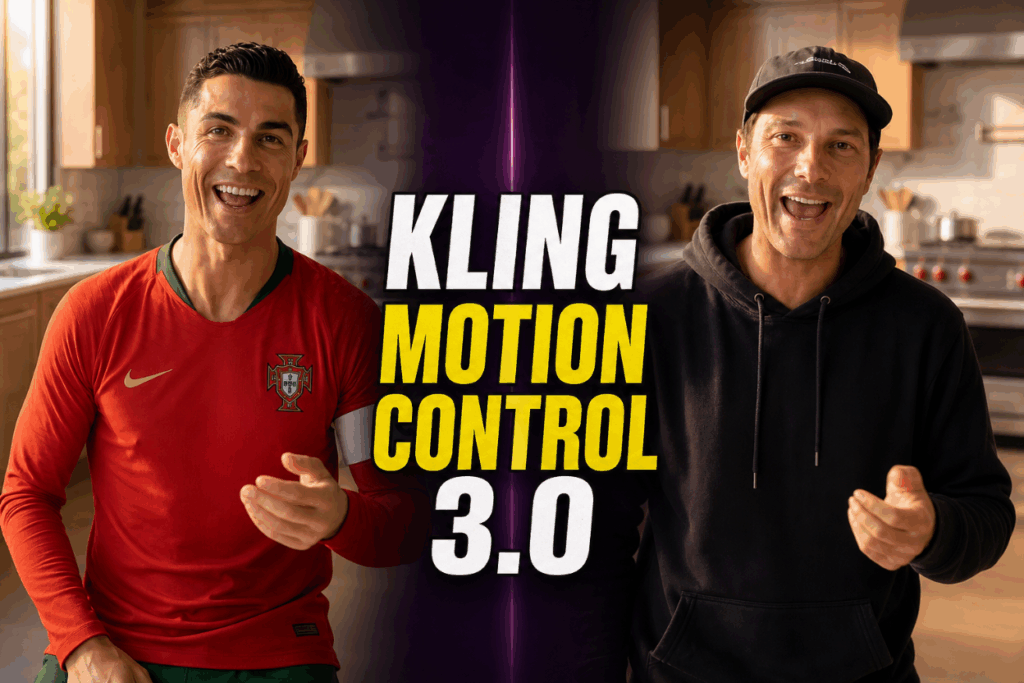
You don't need a professional headshot, but you do need a photo where the subject is facing forward or at a slight angle, well-lit, and not obscured by sunglasses, hats covering the face, or a crowd of other people. If you're animating an original character or an AI-generated avatar rather than a real photo, the same rules apply — a front-facing, full-body or half-body shot with clean edges gives the motion engine more to work with. Full-body shots tend to produce more convincing AI dance videos than headshots, since dance is a whole-body activity and the model needs limb data, not just a face.
Two details trip people up more than anything else, so it's worth calling them out on their own:
- Limbs and Obstructions: Make sure the character's limbs are actually visible in the photo. If your character has their hands tucked in their pockets, but the motion reference calls for a big arm wave, the AI has to essentially guess what those hands look like in motion — and "guessing" is exactly where things go wrong. This is where you get a blurry, smudged texture where a hand should be.
- Negative Space: Leave some breathing room around your character in the frame. If the reference dance involves wide arm movements or a spin, your character needs actual space within the image to move into — otherwise you'll get clipping at the edges, where an arm or leg gets cut off mid-motion because there was nowhere for it to go.
2. A Dance or Motion Reference Video
This is the clip whose movements will be transferred onto your character. You have three realistic options: film it yourself, source a royalty-free clip, or use a template from a motion library if your platform offers one. A few practical notes: the person in the reference video doesn't need to look anything like your character — motion control extracts the movement, not the appearance. But the video should have decent lighting and a mostly unobstructed view of the dancer's full body, since partial or blurry motion capture leads to partial or blurry results in your final AI dance video.
How to Make an AI Dance Video with Kling Motion Control
This is the actual walkthrough for using Kling Motion Control. Four steps, and you'll have a finished AI dance video ready to preview.
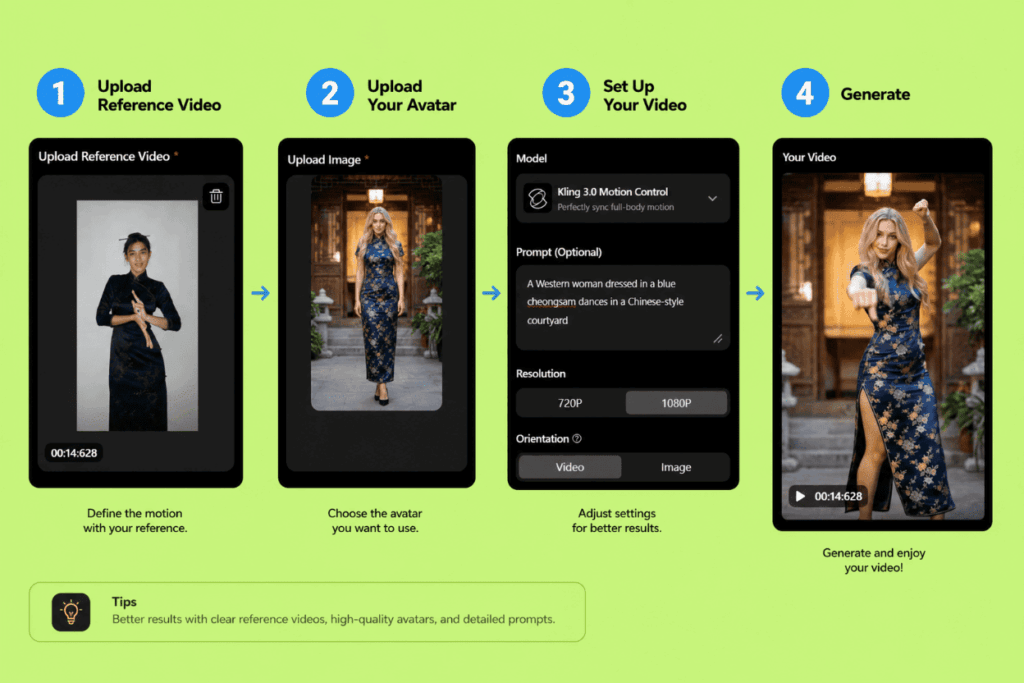
Step 1 — Upload Your Dance/Motion Reference Video
Start with the reference clip containing the dance or movement you want to recreate. This is the input Kling Motion Control actually analyzes first — reading the skeleton, joint angles, and timing of every movement frame by frame, before anything else happens. You can trim the clip if it includes footage you don't need at the start or end; keeping only the dance portion improves accuracy for the rest of the process.
Step 2 —Upload or Create Your Avatar (Your Face, Your Rules)
Next, upload the character you want to bring into the AI dance video. This can be a stylized illustration, a brand mascot, or a fully AI-generated persona — there's no requirement that it be a real person, and some of the most popular AI dance videos online right now feature entirely fictional characters. Once uploaded, the system detects the body outline and key joints so it's ready to receive the movement data from Step 1.
Step 3 — (Optional) Add a Prompt to Describe the Scene
If you want more control over the final look, this is where you can add a short text prompt describing the scene and background — a rooftop at sunset, a neon-lit stage, a plain studio backdrop, whatever fits your concept. The motion itself is still based entirely on your reference video from Step 1; the prompt only shapes the environment your character dances in, not the movement. Skip this step entirely if you're happy with a default background — it's optional, not required, to generate an AI dance video.
Step 4 — Set Your Resolution and Export
Finally, choose your output resolution. Once you generate, preview the result and check for the usual trouble spots: hands passing through hair, feet that slide instead of step, or timing that feels a half-beat off. If something looks slightly off, you can re-run the process or swap in a cleaner reference clip — this is normal, and most creators tweak at least once before landing on a version they're happy with. When it looks right, export your finished AI dance video.
At this point, you have a complete, shareable AI dance video. If dancing is all you wanted, you're done. But if you want your character to actually sing while dancing, keep going.
Turn Your AI Dance Video into a Singing Video with Lipsync
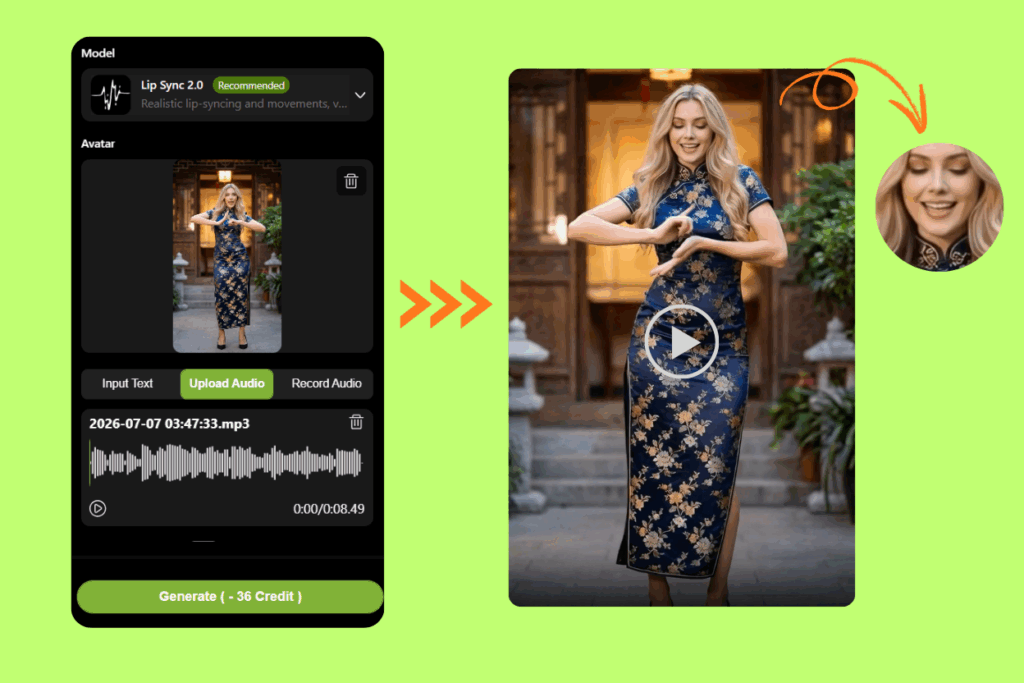
This is the part most AI dance video generators simply don't offer — and it's arguably the more impressive half of the whole workflow. Instead of a silent dance clip, running your video through Lipsync gets you something closer to a real music video: your character dancing and singing in sync, start to finish.
Step 1 — Upload Your Dance Video to Lipsync
Take the AI dance video you just exported and upload it directly into the Lipsync tool. Because it's already a finished video with clear facial visibility (assuming your original avatar had a decent front-facing angle), the system can identify the mouth region and prepare it for audio syncing without any extra setup on your part.
Step 2 — Add Your Audio Track
Upload the song, vocal track, or spoken audio you want your character to perform. It doesn't have to be a professionally recorded vocal — a voice memo, an AI-generated voice, or a licensed music clip all work.
Step 3 — Sync, Preview, and Export the Final Singing Dance Video
The Lipsync engine analyzes the audio's phonemes and timing, then generates mouth movements that match — while keeping the dance motion from your original AI dance video fully intact underneath. Preview the result to check that mouth movement lines up naturally with the lyrics or speech, then export. What you're left with is a single video where your character dances and sings, built from two separate AI processes stitched into one seamless clip.
This two-part workflow — Kling Motion Control for the body, Lipsync for the voice — is what turns a simple AI dance video into something that feels like a produced performance rather than a novelty clip.
Tips to Use Our AI Dance Video Generator to Create Viral Dance Clips
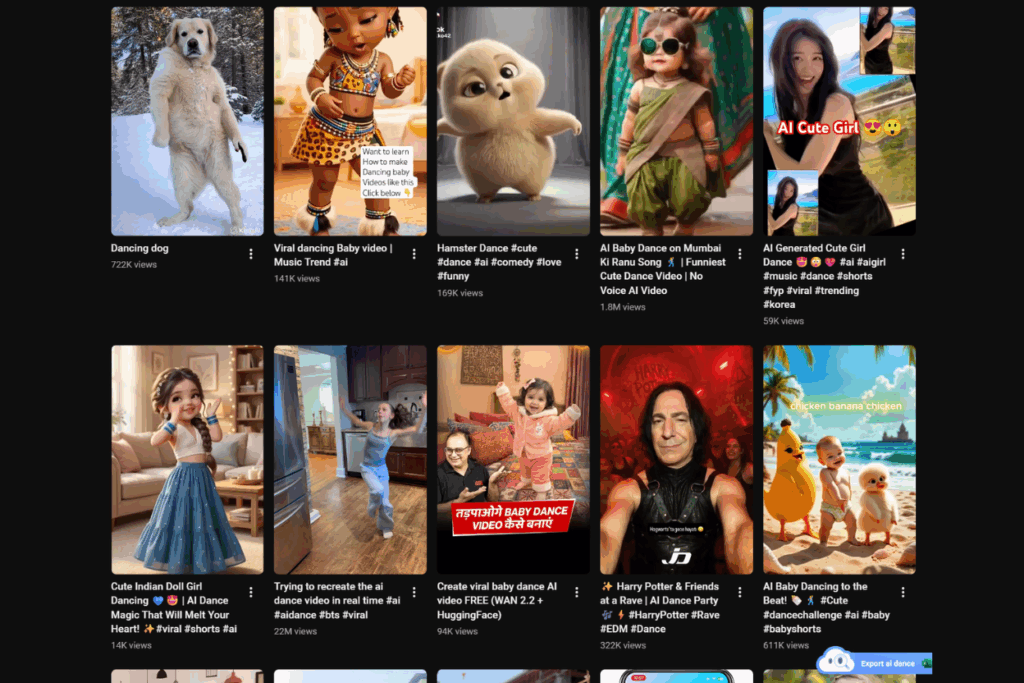
Making an AI dance video is one thing. Making one people actually want to share is a different skill, and it's mostly about small decisions you make before you ever hit generate.
1. Pick a Trending Song or Dance Challenge
Platforms reward relevance. An AI dance video set to a song or challenge that's currently trending has a built-in discovery advantage — the algorithm is already actively pushing that sound to people who've engaged with it before. Check what's trending on TikTok's Discover page or Instagram Reels before choosing your reference clip; timing your post to a challenge's peak (not its tail end) makes a measurable difference in reach.
2. Keep Your Reference Motion Short and Punchy
We mentioned this earlier, but it's worth repeating because it directly affects viral potential: short, distinct movements outperform long freestyle routines. A single memorable move — a hip drop, a signature arm wave, a sharp turn — reads clearly through motion control and reads clearly to viewers scrolling fast. Save the elaborate five-minute choreography for later; your first few AI dance videos should be short enough to loop.
3. Choose a Character Photo with Personality
A flat, neutral photo produces a flat, neutral AI dance video. Characters with a distinct visual identity — bold colors, a recognizable expression, a costume, a mascot design — tend to get remembered and rewatched. If you're building something like a recurring AI influencer or brand character, consistency here matters even more: use the same base avatar across multiple AI dance videos so audiences start to recognize "that dancing character" specifically, not just "a random AI clip."
4. Add the Singing Layer for Extra Shareability
This is the tip most people skip, and it's the one with the biggest payoff. A silent AI dance video is fun for about six seconds. One where the character is also singing — especially to a recognizable song or a funny custom audio — invites comments and shares in a way that pure movement doesn't. Running your finished dance clip through Lipsync turns a decent clip into a shareable one, because now there's something for viewers to react to beyond "wow, AI is cool."
Ready to Make Your Own AI Dance Video?
At this point you've got the full picture: upload a photo, add a motion reference, let Kling Motion Control do the choreography, then send the result through Lipsync if you want your character singing along too. No dance floor required.
If you're ready to try it, Lipsync.video has both tools built into one workflow, so you're not juggling multiple apps to get from "photo" to "finished, singing AI dance video." Start with a short reference clip, pick a photo with some personality, and see what your first one looks like.