
How to Make a Full AI Music Video from Photos
 Jennifer
Making a short singing video from a photo is relatively simple. Creating a video for an entire song takes more work, especially when you need to generate several clips, synchronize them with the music, and keep the same character recognizable from beginning to end.
An AI music video can now be created using a few reference photos and an audio track, without filming every scene or manually joining dozens of short clips.
In this guide, we'll use Lipsync.video to walk through the process, explore what makes a full-length music video different from a basic singing photo, and share practical ways to improve the results.
Stop Stitching Short AI Video Clips Together
Imagine you've created a fictional singer and want to make a music video for a three-minute song. Your first AI-generated clip looks great, but it only covers a few seconds.
To finish the song, you generate another clip, then another. Soon, you're managing separate files for the introduction, verses, and chorus. Each clip needs to match the music, and the singer needs to look like the same person throughout.
That's where a seemingly simple project becomes time-consuming.
Even when individual clips look convincing, small differences can become noticeable once they're placed together. The singer's hairstyle might change, the lighting may shift unexpectedly, or the transition between scenes may feel abrupt.
Singing Photo 3.0 approaches the process differently. Instead of requiring you to generate every section separately, it can create an AI music video from one to three reference photos and a song, with multiple scenes and camera angles.
The model supports videos up to 10 minutes long, allowing you to work with a complete song within that duration.
This is particularly useful when the song itself is the main content. A fictional performer can sing through a full track, a brand mascot can appear in a promotional music video, or an educational character can perform a learning song without requiring a separate generation for every verse.
How to Make an AI Music Video in 3 Steps
You only need two types of input: photos of your singer or character and the song you want them to perform.
Step 1: Upload Your Singer Photos
Choose one to three photos of the person or character you want to feature.
For this example, we're using three images of the same female singer: a close-up portrait, a medium shot, and a wide shot.
Upload your selected photos. If you only have one suitable image, you can use that instead.
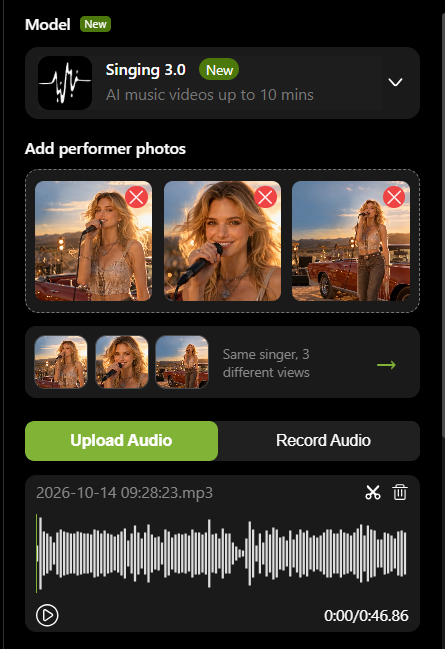
Step 2: Select Singing Photo 3.0 and Add Your Song
Open the Singing Photo 3.0 tool and choose the Singing Photo 3.0 model.
Upload your song or audio recording. Make sure the audio is within the supported 10-minute duration.
You can also use Set the Scene (optional) to describe your preferred setting, mood, or visual style. This gives the AI additional creative direction when generating your music video.
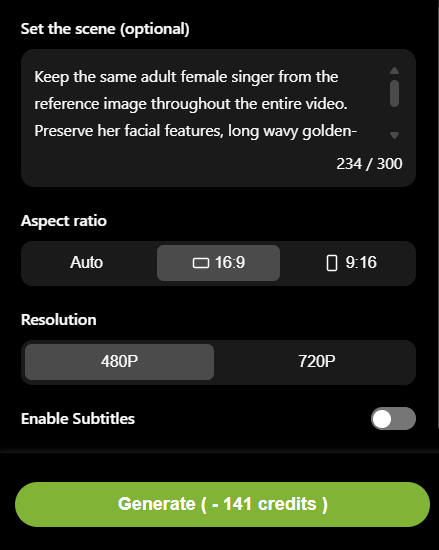
Step 3: Generate and Download Your AI Music Video
Click Generate and wait for the result.
Preview the finished video, then download it if you're satisfied. Depending on where you plan to publish it, you can also add subtitles, a title, or other finishing touches in a video editor.
AI Music Video vs. Singing Photo: What's the Difference?
Both singing photos and AI music videos can make a person or character appear to sing, but they produce different kinds of videos.
Traditional singing photo models focus on animating an existing image, usually keeping the original composition. AI music video generation goes further, creating a performance with changing scenes and camera angles rather than relying on a single shot.
Here's how they compare using the Singing Photo models on Lipsync.video:
| Feature | Singing Photo 1.0 / 2.0 / 2.5 | Singing Photo 3.0 (AI Music Video) |
|---|---|---|
| Video style | Animates a singing photo | Generates a multi-scene music video |
| Visual composition | Generally follows the original image | Multiple scenes and camera angles |
| Maximum duration | 1.0: 90s / 2.0: 40s / 2.5: 3 min | Up to 10 min |
| Best for | Singing portraits, memes, short greetings | Full songs, music videos, character performances |
1. When Is a Singing Photo Enough?
If your idea revolves around a single image coming to life, a traditional singing photo may be all you need. A pet singing a funny song, an animated portrait, or a quick birthday greeting doesn't necessarily require multiple scenes.
The original image is the main attraction, and keeping its familiar composition can be part of the appeal.
2. When Should You Create an AI Music Video?
For a complete song, visual variety becomes more important. Imagine a fictional singer performing onstage: the video begins with a close-up, moves to a medium shot during the verse, and switches to a wider stage view for the chorus.
Singing Photo 3.0 is designed for this type of performance. With one to three reference photos and a song, it can generate an AI music video with multiple scenes and camera angles, lasting up to 10 minutes.
This makes it useful for full-length music performances, character-based social media content, and promotional music videos.
In short, a singing photo brings an image to life, while an AI music video builds a performance around the song.
Tips for Making a Better AI Music Video
The quality of an AI music video depends partly on the materials you provide. A few careful choices before generation can help you avoid common problems.
1. Choose Photos with Clear Facial Details
The singer's face is one of the most important elements in a singing video, so choose images where the facial features are easy to identify.
At least one reference should provide a reasonably clear view of the eyes, nose, and mouth.
Avoid heavily blurred portraits, extreme side profiles, and images where hair, hands, or accessories cover much of the face.
Lighting matters too. A well-lit portrait usually provides more useful facial information than an image with deep shadows across the mouth and eyes.
Before generating your AI music video, check whether the singer's face is clearly visible at its original image size. If the mouth or eyes are difficult to distinguish, choose a clearer reference instead.
2. Keep the Same Character Across Your Reference Photos
If you're uploading multiple images, they should all depict the same person or character.
Different framing is fine. In fact, a close-up, medium shot, and wide shot can provide useful visual references.
What matters is keeping recognizable features consistent.
For example, if your singer has a short black hairstyle and wears a red jacket, try to preserve those details across the images rather than switching to an entirely different look.
For illustrated characters, pay attention to distinctive accessories, clothing colors, and facial features.
If you don't have several consistent images, using one clear reference may be a better choice than uploading photos that contradict each other.
3. Use Audio with Clear Vocals
The audio provides the timing for the singing performance, so it deserves as much attention as the photos.
Choose a recording where the main vocals are easy to hear. Excessive background noise, overlapping voices, or vocals buried beneath loud instruments can make lip synchronization harder to evaluate.
This is especially important for educational songs and promotional jingles.
If you're creating a vocabulary song, students need to understand the words. If you're making a brand jingle, the audience should be able to hear the message.
Listen to the entire audio track before uploading it. Check for unwanted silence, abrupt cuts, or recording problems that could affect the finished video.
4. Review More Than the Opening Scene
A convincing first few seconds don't guarantee that the entire video looks equally good.
After generation, watch the opening, middle, and ending. Pay attention to whether the singer remains recognizable, whether the mouth movements follow the vocals, and whether scene changes feel natural.
For a longer AI music video, check a few sections where the vocals become faster or more expressive. These moments can make synchronization issues easier to notice.
Also consider the final viewing environment.
If the video is intended for social media, preview it on a mobile screen. If it's for teaching, check whether the visuals support the lesson. If it's for a brand, look carefully for unexpected changes in the mascot's appearance.
Before publishing your AI music video, preview it in the format your audience will see. Check how the visuals look on a phone for social media, whether captions are readable for educational content, and whether brand characters remain recognizable in promotional videos.
FAQs About AI Music Video Creation
1. Can I Use Photos of Different People in One AI Music Video?
No. Singing Photo 3.0 supports up to three reference photos, but they must show the same person or character. You can use different angles or compositions, such as a close-up, a medium shot, and a full-body photo.
Uploading photos of different people can confuse the model and cause the generation to fail. If you want to create an AI music video with multiple singers, this model is not designed for that purpose.
2. Can I Create an AI Music Video from Just One Photo?
Yes. Singing Photo 3.0 supports a single reference image, so you don't need three photos to get started.
However, results from one photo can be less predictable, especially when the AI generates new camera angles or scenes. Using multiple consistent photos of the same character can provide better visual references and help improve stability.
3. Can I Control the Scenes and Camera Angles in My AI Music Video?
Singing Photo 3.0 can generate different scenes, compositions, and camera angles from your reference photos and music. However, these changes are generated automatically rather than controlled shot by shot.
If you need a particular scene or camera angle, review the generated video to see whether it matches your expectations. The model is better suited to creating a complete performance than following a precisely planned shot list.
4. Do I Need to Fill In the Set the Scene Field?
No. Set the Scene is optional, and you can generate an AI music video without it. However, adding a short description of your preferred setting, atmosphere, or visual style can help the AI better understand the kind of music video you want to create. Think of it as creative guidance rather than a strict instruction. The final scenes may still vary from your description.
Ready to Create Your Own AI Music Video?
With Singing Photo 3.0, you can turn a simple photo and a song into a complete music video. No filming or complicated editing required.
Don't have the right singer photo? Try GPT Image 2.5 to create your own virtual singer. Then bring that character to the stage with Singing Photo 3.0.