
How to Make Zootopia Nick Speak Your Lines
 Jennifer
Zootopia Nick has always been one of those characters who feels just a little too alive for an animated fox. With the release of Zootopia 2, Zootopia Nick is suddenly everywhere again—on social media edits, fan art boards, reaction memes, and at the center of thousands of “He would totally say this” fandom jokes. If you’re reading this, you’re probably thinking: “What if Zootopia Nick actually could say or sing anything I want?”
Good news: now he can.
Thanks to modern AI lipsync tools, you can turn any still image of Zootopia Nick into a Talking video, or even Singing video that speaks your lines with surprisingly natural mouth movements. No animation background. No editing headache. No need to learn 27 layers of Adobe timelines. Just upload a picture, type what you want Zootopia Nick to say, and let lipsync.video handle the rest.
This tutorial was written for four major groups of users
1、Content Creators
YouTubers, TikTokers, podcasters, VTubers, streamers—anyone who wants a fun, clickable talking character. Imagine Zootopia Nick giving your intro, roasting your chat, or narrating your gameplay clips.These singing vide or talking videos will help you gain views.
2、Everyday Users Who Just Want Fun
Maybe you want Zootopia Nick to congratulate a friend, confess your love, or deliver the perfect “sarcastic fox energy” message you’ve always wished you could send.
3、Professional Voice & Video Editors
If you work in animation, voiceover, or creative production, AI talking video saves hours. You can mock up scenes, test dialogue timing, or create placeholders without locking in animation resources. Zootopia Nick makes this process fun and fast.
4、Businesses & Educators
Imagine using a friendly animated character in customer support videos, onboarding flows, product explainers, or classroom content. Zootopia Nick might not be your “official brand mascot,” but he’s a perfect example of what the tech can do.
What You Need to Make a Zootopia Nick Lipsync Video
Creating a Zootopia Nick singing video or talking video is surprisingly simple—even if you’ve never edited a video before. With lipsync.video, you only need a few basic materials to turn Zootopia Nick into your personal voice actor.
1、A Clear Image or Screenshot of Zootopia Nick
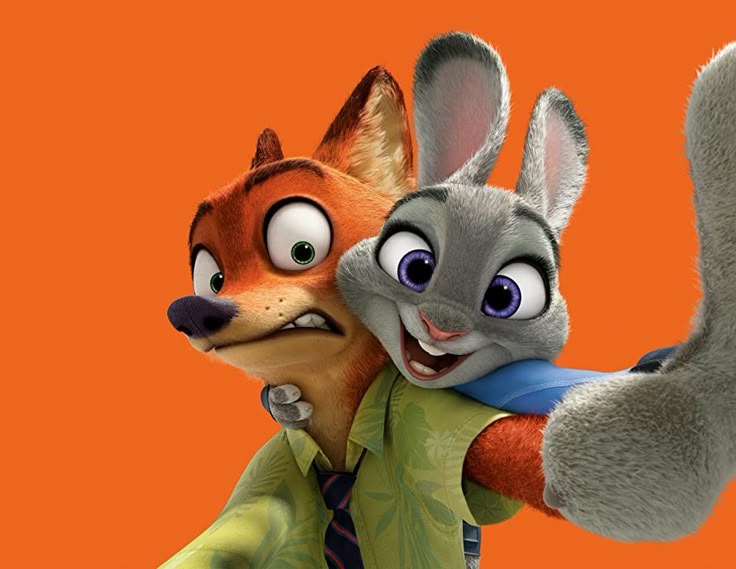
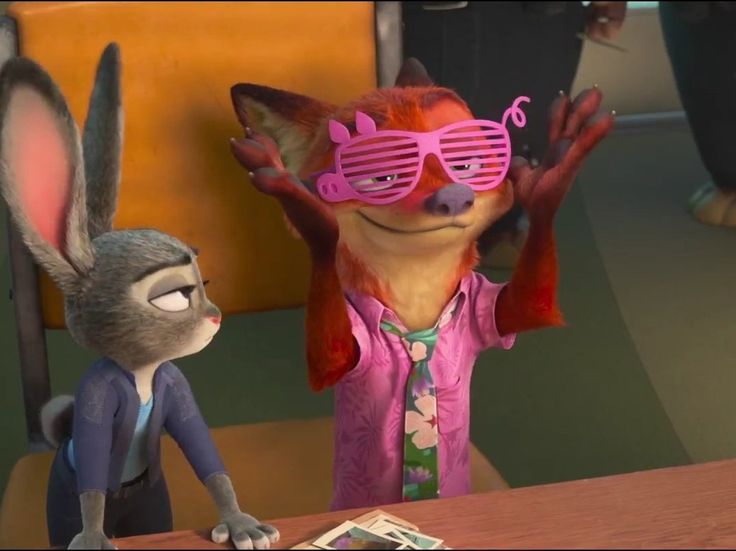
The first thing you need to create a great Zootopia Nick lipsync video is a clean, high-quality image of Nick Wilde. The better the image, the more accurate the lip movement and facial animation will look.
Here’s what works best:
- High-resolution image (at least 720p) Avoid pixelated or blurred images; AI performs best with crisp details.
- Front-facing or semi-profile poses When Nick’s mouth is visible, lipsync accuracy improves dramatically.
- Good lighting and clear contrast Avoid overly dark scenes or strong shadows covering Nick’s muzzle.
- Screenshot or fan art—both acceptable lipsync.video works not only with original frames from Zootopia or Zootopia2, but also with fan drawings, stylized art, posters, or wallpapers.
If you want Nick to look more expressive, choose a screenshot where he’s already showing some emotion—smirking, annoyed, excited, or unimpressed. Nick’s personality translates extremely well into AI-generated talking videos or singing video.
2、A Short Script You Want Nick to Speak
Once your image is ready, the next step is preparing the lines you want Zootopia Nick to say. Since Zootopia Nick is known for his witty, sarcastic charm, fans often create lines that highlight his personality.
Here are some script ideas:
- Funny one-liners: “Relax, Judy. I’ve got everything under control… probably.”
- Birthday or holiday greetings: “Happy Birthday! Yes, even foxes celebrate with cake.”
- Sarcastic reactions: “Oh look, another meeting that could’ve been an email.”
- Motivational messages: “You’ve got this. Even hustlers need encouragement.”
- Custom lines for YouTube/Twitch intros: “Hey everyone, Nick here—welcome back to the channel!”
Shorter scripts (5–20 seconds) usually produce the most natural results, but you can go longer if needed. If you're using this for content creation, prepare a few variations to test different vibes for Zootopia Nick.
3、A Lipsync Video Tool — Lipsync.Video
To turn your image and script into a smooth Zootopia Nick talking video, you’ll need the right tool—and lipsync.video is the easiest option available online.
Here’s why creators love it:
- No editing skills required Just upload your picture, paste the script, and click generate.
- Fast generation Your talking video is ready in seconds, perfect for social media posting.
- AI-accurate lipsync The system analyzes syllables and mouth shapes to produce natural animation.
- Works with any Nick artwork From HD screenshots to cute fan art, everything syncs well.
- Great for creators, casual users, and educators Whether you're making TikTok jokes, YouTube intros, classroom content, or character dialogue, the workflow is the same—quick and simple.
If you want Zootopia Nick to speak multiple languages (English, Chinese, Spanish, etc.), lipsync.video supports multilingual text, making it perfect for global audiences.
Creating a custom Zootopia Nick talking video doesn’t require professional editing experience. Follow along once, and you’ll be able to make unlimited Nick clips whenever inspiration strikes.
Step 1 — Upload Your Zootopia Nick Image
Start by choosing the Zootopia Nick image you want to animate. This can be a screenshot from Zootopia, a frame from Zootopia2, a wallpaper, or even fan art. Once you have your file ready:
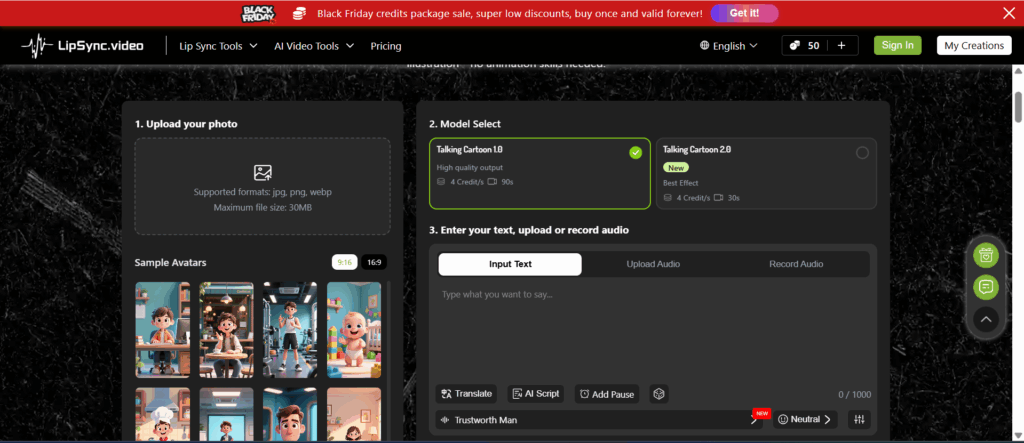
- Go to talking cartoon.
- Click Upload Image or simply drag and drop the file into the workspace.
Supported formats include JPG, PNG, WEBP, and other common image types.
Step 2 — Enter the Dialogue You Want Nick to Say
Now it’s time to make Zootopia Nick speak your lines. In the text box provided, simply enter the script. You can type anything—from jokes to emotional messages to professional content.
To get the most natural talking video effect:
- Keep sentences concise Zootopia Nick’s fast-talking personality fits well with short, punchy lines.
- Add pauses using punctuation Commas and periods help the AI control rhythm.
- Match tone to Nick’s character Sarcastic? Charming? Sneaky? He can do it all.
- For multilingual content, simply type in the language you want—Nick can speak English, Chinese, Spanish, Japanese, and more using lipsync.video.
Step 3 — Let AI Generate the Talking Video
This is where the magic happens. After you upload the image and enter your script, click Generate.
Here’s what the AI does behind the scenes:
- Analyzes each syllable in your text
- Maps mouth shapes (visemes) to Nick’s facial structure
- Predicts micro-expressions to make the speech lively
- Smoothly animates frames to create a realistic Zootopia Nick talking video
Within seconds, you’ll see a preview animation. If your script is longer, generation may take slightly more time—but still far faster than manual animation.
The best part? No need for After Effects, no need for keyframes, no need for animation experience.Everything is handled automatically.
Step 4 — Preview and Download Your Finished Zootopia Nick Clip
Once the talking video is generated, watch the preview:
- Check if the lip movements match your intended tone
- See whether the expression fits your message
- Make sure the pacing feels natural
Not satisfied? Just tweak the script and regenerate—it only takes seconds.
NEW FEATURE: Singing Cartoon Mode
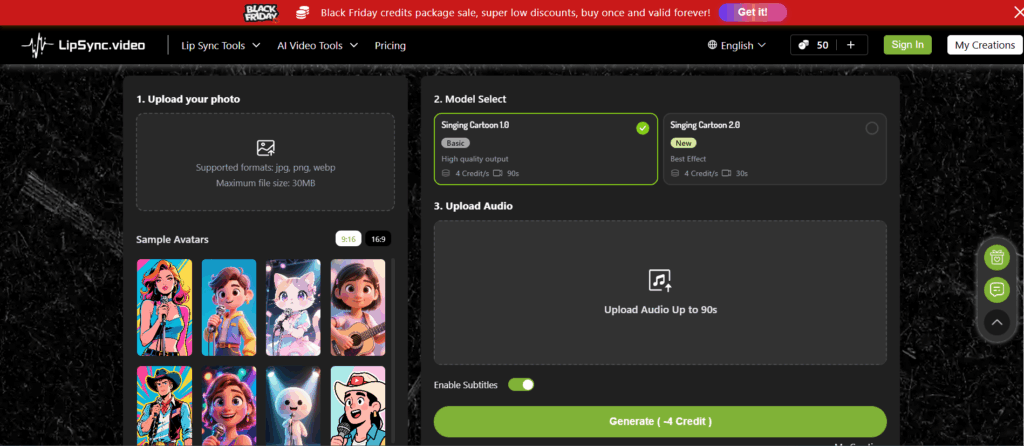
If you want to take Zootopia Nick beyond talking video, lipsync.video now includes a Singing Cartoon mode.
With Singing Cartoon:
- You can make Zootopia Nick sing your lyrics
- Upload an audio clip or type lyrics
- AI animates mouth shapes to match singing
- Great for parody songs, meme edits, or musical greetings
- Perfect for fans who want a “Zootopia Nick cover version” of trending songs
This feature opens a whole new world of creative possibilities—yes, Zootopia Nick can now sing anything from pop hits to dramatic ballads. The fox has range.
Creative Ideas — Fun Ways to Use Your Zootopia Nick Talking Video
Creating a Zootopia Nick talking video is already fun, but using it in clever and unexpected ways is where the real magic begins. Whether you’re a content creator looking for engagement, a casual user trying to make friends laugh, or a teacher adding some charm to your lessons, Zootopia Nick can help bring your ideas to life. Below are some of the most creative, effective, and hilarious ways people are using lipsync.video to give Nick a voice.
1、Make a Zootopia Nick Birthday or Holiday Greeting
One of the most popular uses of a talking video is sending a personalized greeting. Instead of a generic card or a text message, imagine Nick Wilde leaning forward, smirking in that trademark fox way:
“Hey buddy, happy birthday! Judy made me promise not to eat your cake, but no guarantees.”
People adore receiving customized messages from characters they love. They feel special, original, and far more memorable than a simple typed message.
2、Turn Nick into Your Sarcastic Daily Commentator
Nick Wilde is known for his sarcastic charm—so why not let him say the things you wish you could say out loud?
With lipsync.video, users often create short commentary clips featuring Nick reacting to daily annoyances:
- “When your coworker sends an email that could’ve been one sentence…”
- “When someone says they’ll ‘reply later’ and never does.”
- “When the Wi-Fi drops exactly when you’re winning the game.”
Even brands can use Zootopia Nick-like characters (or any custom mascot) to deliver witty social media content that feels personal and fun.
3、Re-create Movie Moments with Your Own Dialogue
Fans love re-creating iconic moments from Zootopia or Zootopia2, but adding a twist—your own dialogue. Imagine rewriting:
- The “trust me” scene
- The DMV sloth moment
- Nick and Judy’s police car banter
- Flash’s slow reactions
- The big chase sequences
With lipsync.video, you can make Zootopia Nick say anything—dramatic, emotional, hilarious, or completely absurd ,also can sing your favourite song.These remixed scenes often go viral due to the combination of nostalgia and creativity.
Conclusion — Your Zootopia Nick, Your Lines, Your Creativity
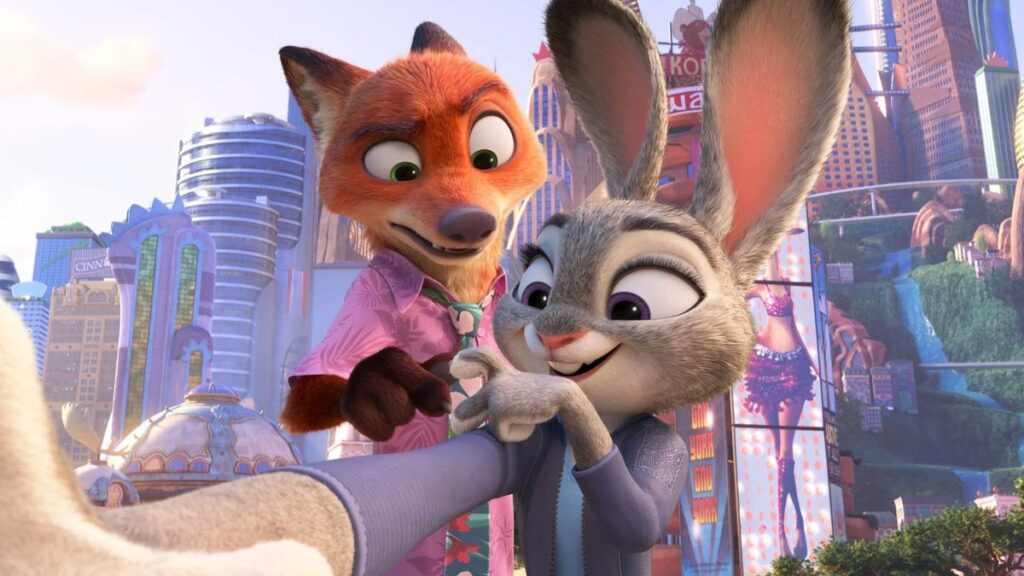
Creating a Zootopia Nick talking video or singing video with lipsync.video is not just about making a character speak—it’s about bringing your imagination to life. With a few simple steps, anyone can turn screenshots, fan art, or even simple sketches into dynamic, shareable talking videos.
So go ahead—upload, type your lines or upload audio, generate, and share. With lipsync.video, your Zootopia Nick is ready to speak your words, sing your song, entertain your audience, and make your content unforgettable.